Overview
The Embed a Website control in the App Designer editor allows you to display custom web content in your app using HTML, CSS, and JavaScript.
The control includes a code editor with search, preview, and theme customization features. It supports interaction with Bizagi data through the SDK, enables dynamic content through contextualized pages, and provides AI assisted code generation capabilities.
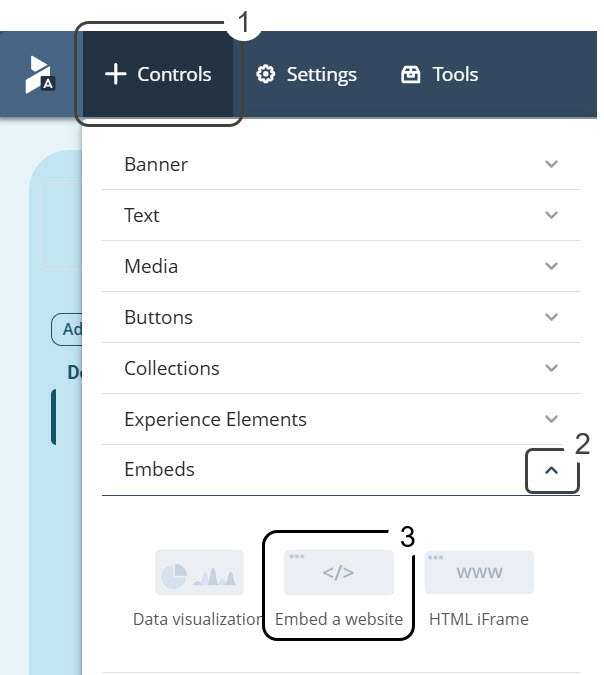
Setting up the control
Manage tab
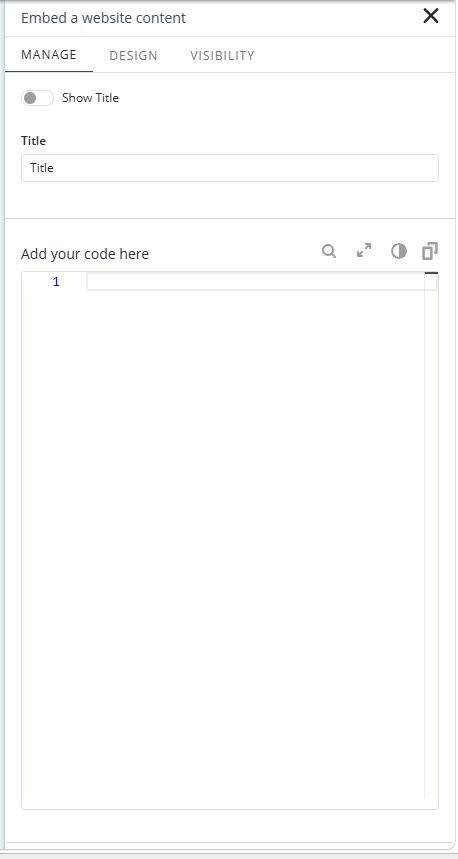
The Title field lets you define a title for the embedded website. You can choose whether the title is displayed in the app.
The Add your code here field allows you to configure either static or dynamic content. For Fixed content, you can write HTML, CSS, and JavaScript code to create and display a custom embedded website in the app.
Detail pages
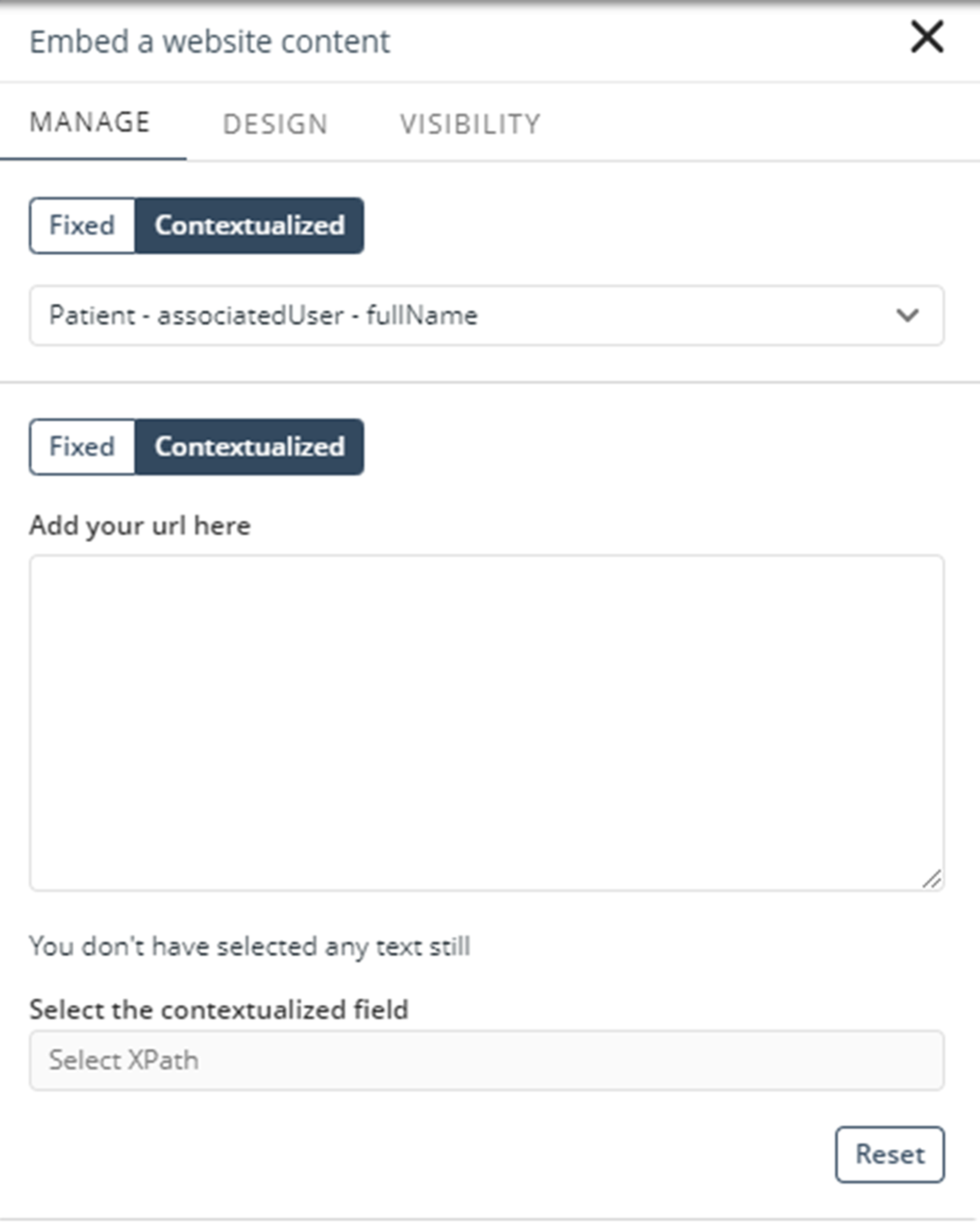
When the page is configured as a Detail page, you can define whether the embedded content is static or dynamic by selecting Fixed or Contextualized, respectively.
Design tab
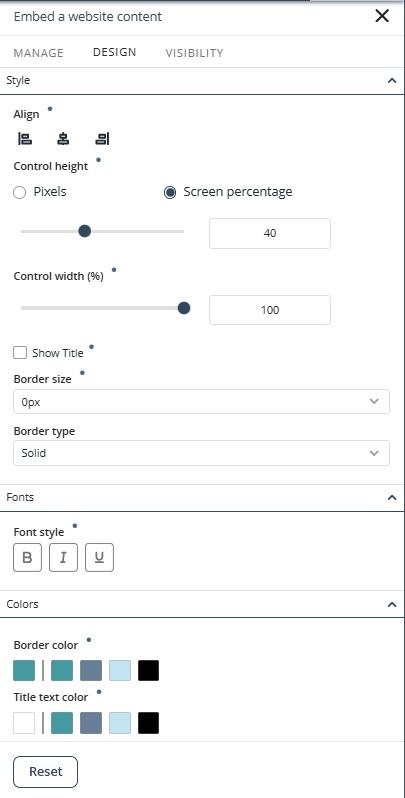
The properties in the Design tab allow you to customize the appearance of the control. To restore the original settings, click Reset.
Style
•Align: Sets the alignment of the content within the control to left, center, or right.
•Control height: Defines the height of the control. You can configure the height in pixels or as a percentage of the available screen space.
•Control width: Defines the width of the control. You can configure the width as a percentage of the available screen space.
•Show Title: Determines whether the title defined in the Title field is displayed.
Border
•Border size: Defines the border width in pixels.
•Border type: Defines the border style applied to the control.
•Border color: Defines the color of the control border.
|
Properties with inherited values display a blue dot. Hover over it to see the source. When modified, a Reset option appears for that specific property. |

Visibility tab
You can define the control's visibility from the VISIBILITY tab.
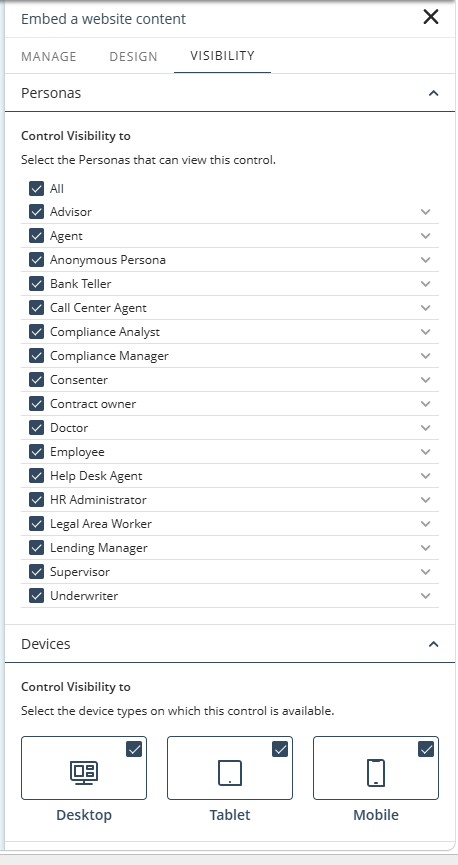
This option contains two sections:
•In the Personas section, you can select the entities or Personas that are allowed to view the control.
•In the Devices section, you can configure the control's visibility by device (Desktop, Tablet or Mobile). For further information, refer to Control visibility by device.
Embed a Website Control Code Editor
Options menu
The upper left corner of the code editor contains four options: Find, Expand, Theme and Copy.
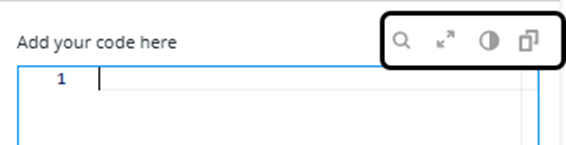
•Find: Search for keywords or text strings within the code editor.
•Expand: Enlarges the code editor and displays a preview panel alongside the editor. A resizable divider between the code editor and the preview panel lets you adjust the size of each area, providing more workspace for editing code or reviewing the preview.
•Theme: Change the visual appearance of the code editor.
•Copy: Copy all content from the code editor so you can save, review, or edit the code outside the App Designer editor.
Snippets and contextual help for APIs
Before using SDK capabilities, place your code inside sdk.onReady(). This method executes your code when the SDK is fully loaded and available for use.
The code editor provides contextual help that displays available SDK methods, parameters, actions, and data fields, making it easier to configure the desired behavior.
The editor supports navigation methods that allow embedded content to interact with the app experience. Available navigation methods include:
•sdk.Navigation.goToInternalPage()
•sdk.Navigation.goToUrl()
•sdk.Navigation.goToContextualizedPage()
When you select a navigation method, the editor inserts the corresponding code snippet and displays available navigation options when applicable.
The editor supports data access through Views, Cases, and Persona Collections.
Views
The Collection API (sdk.Collection.view()) allows embedded content to retrieve records, access individual items, load available actions, execute actions, and navigate using record context. Using views, embedded content can:
•Retrieve view records.
•Access individual records.
•Load available actions.
•Execute actions.
Supported methods include:
•view.list()
•view.get()
•view.loadActions()
•view.action()
Cases
The SDK supports access to Bizagi process cases through sdk.Cases.process(). Using Cases, embedded content can:
•Retrieve lists of cases.
•Access individual cases.
•Load available actions for a case.
•Execute case actions.
•Navigate to pages using case context.
Supported methods include:
•list()
•get()
•loadActions()
•action()
•navigateTo()
Persona Collections
The Collections SDK (sdk.Collections.persona().collection()) provides access to collections associated with Personas. Using Persona Collections, embedded content can:
•Retrieve collection records.
•Access individual records.
•Load available collection actions.
•Execute collection actions.
•Navigate using collection context.
Autocompletion
The editor includes contextual autocompletion for supported SDK capabilities. Press Ctrl + Space to display available suggestions. Depending on the current context, suggestions may include:
•Views
•Processes
•Personas
•Collections
•Methods
•Actions
•Data fields
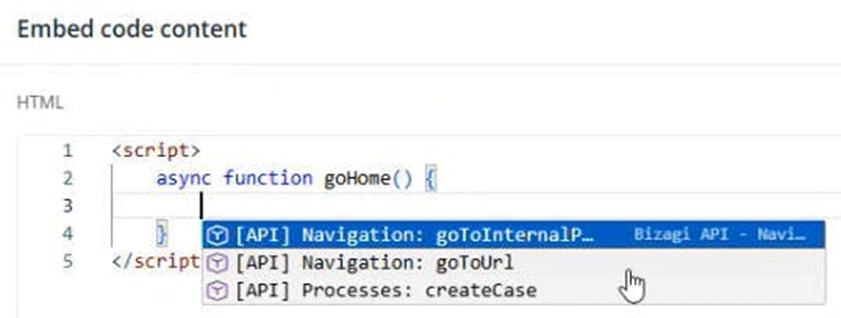
When working with data returned by views, cases, or collections, the editor can also suggest available fields and related metadata.
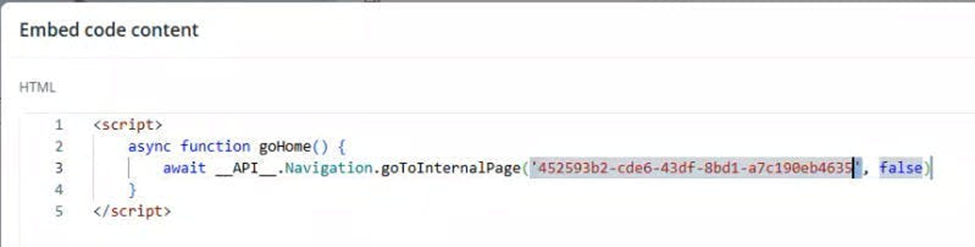
When you select an available option, the editor inserts the corresponding code snippet and displays additional suggestions when available.
If you need to change a selected option, delete the current value and press Ctrl + Space to reopen the suggestion menu and select a different option.
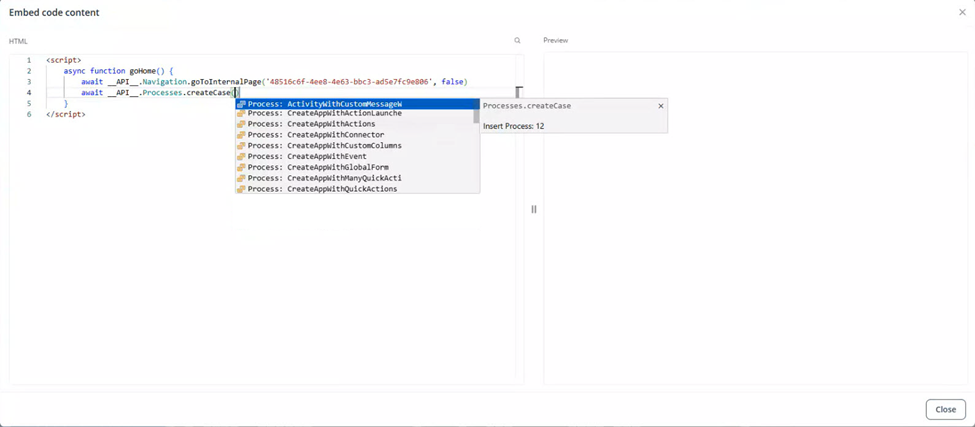
Working with Detail pages
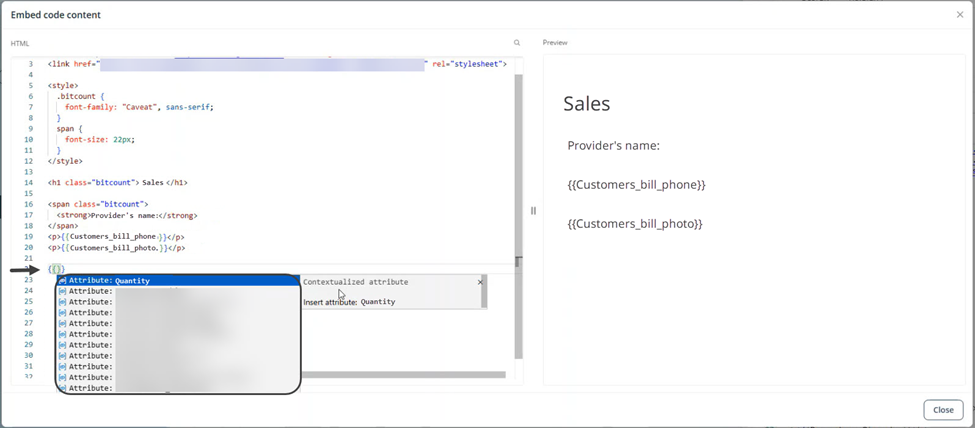
When working with Detail pages, you can access page attributes using double curly braces ({{ }}).
After you type the opening double curly braces, the editor displays a list of attributes available for the current page. You can filter the attribute list by name to quickly locate the required attribute.
After you select an attribute, the attribute value is rendered directly within the Embed a Website control.
|
When developing embedded content: •Use only SDK objects, properties, and methods explicitly documented in the SDK documentation. •Do not assume the existence of objects, properties, or methods that are not documented. •Do not infer SDK structures based on conventions from other libraries or frameworks. |
AI Assisted development
The SDK documentation is structured so it can be used with an AI assistant to generate code for an embedded page, even if you do not have programming experience.
An AI assistant can then generate the HTML, CSS, and JavaScript required for the Embed a Website control.
Generating code with an AI assistant
To generate code with an AI assistant:
1.Download the SDK API documentation or copy the relevant sections.
2.Provide the documentation to the AI assistant.
3.Write a prompt describing the desired functionality.
4.Copy the generated code into the code editor of the Embed a Website control.
5.Review the generated result and refine it manually or request additional modifications from the AI assistant.
Prompt requirements
For best results, provide the following information:
Functional requirements
Describe:
•The purpose of the embedded page.
•The information that should be displayed.
•The expected user interactions.
•The desired layout or visual presentation.
•Any navigation, filtering, pagination, or actions that should be available.
A prompt should be:
•Clear: Explain what the embedded page should do.
•Specific: Describe the expected data, layout, and interactions.
•Concise: Focus on the required outcome and avoid unnecessary details.
•Action-oriented: Describe what should happen when users interact with the page.
Data source information
In addition to the functional requirements, provide the technical information required by the selected SDK capability.
Collection.view
Provide:
•View name.
•View ID.
•Available fields.
Cases.process
Provide:
•Process name.
•Process ID.
•Available case fields.
Collections.persona.collection
Provide:
•Persona name.
•Stakeholder ID.
•Collection name.
•Collection ID.
•Available fields.
When using Collections.persona.collection, include the collection display name (sourceDisplayName) together with the collection information.
|
To learn more about the capabilities and implementation of the Embed a Website control, see the Booster. |
Last Updated 9/9/2026 8:14:51 PM