Overview
You work with process instances as cases. By default, each new case receives a Case Number from an internal sequence that prevents duplicate numbers and uniquely identifies each case.
You can customize this numbering to meet your business needs. This article explains how to define Case Numbers using sequences or rules, with examples for each configuration option.
Case numbering configuration options
•By sequence: You define a counter that increases by a specified value each time you create a case. You can set its initial value and increment, and customize the Case Number with a prefix and a suffix.
•By rule: You define an Expression that returns the Case Number. You can use calculations or validations when your numbering requires a more complex configuration than a sequence provides.
|
The Case Number is the number you see in the Work Portal. Customizing it does not change the Case Id, the independent identifier that Bizagi automatically generates for each case and uses for internal numbering. |

Defining Case Numbers by sequence
To define Case Numbers by sequence, create a sequence and assign it to a specific Application or Process.
In this example, an industrial company starts using Bizagi in mid-June to automate its Invoice Generation process. The company has already generated 1,651 invoices during the year. Each new case must use a consecutive Case Number that corresponds to the invoice number.
To create a Sequence, follow the next steps:
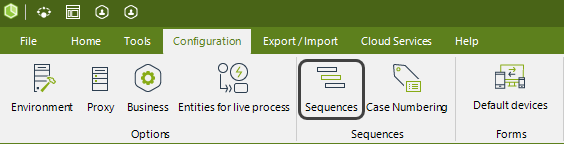
1. Go to the Expert View open the Configuration tab and click Sequences.
2. In the new window, click Add and configure the following fields:
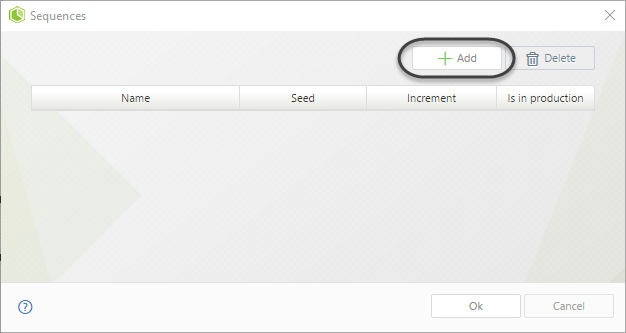
•Name: Enter a descriptive name without spaces, accent marks, or symbols.
•Seed: Enter the initial numeric value of the sequence.
•Increment: Enter the numeric value by which the sequence increases.
For this example, enter InvoiceSequence as the Name, 1,652 as the Seed, and 1 as the Increment. The sequence increases by one each time you create a case.
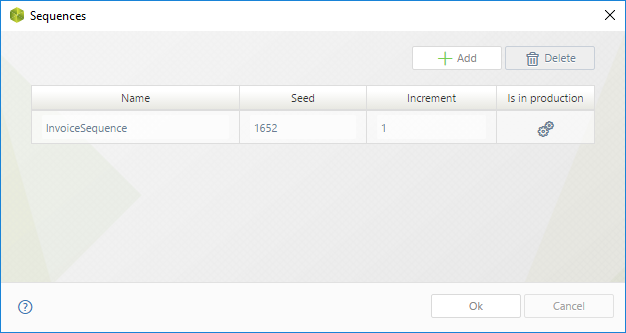
3. Click OK to save your changes.
After creating the sequence, assign it to the Case Number configuration:
1. In the Expert View, open the Configuration tab and click Case Numbering.
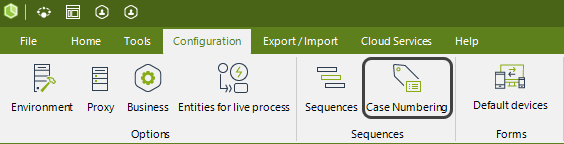
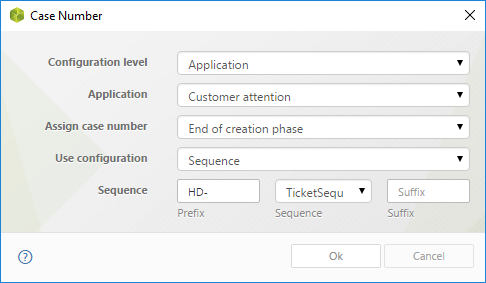
2. In the window, configure the following fields:
•Configuration Level: Select Bizagi (common to all applications) to apply the numbering to the entire project, or Application to apply it to a specific Application.
•Application: Select the Application to which you want to apply the numbering. This field is available when you select Application as the Configuration Level.
•Assign the Case Number at: Choose when to assign the Case Number: Case Creation or End of creation phase. The latter option is useful when the creation phase includes more than one activity.
•Use Configuration: Select Default to use Bizagi’s default numbering, By sequence to use a sequence you define, or By rule to use an Expression.
•Number Configuration: Configure the numbering when you select By sequence or By rule. For By sequence, define the prefix, select the sequence, and define the suffix. For By rule, define the Expression.
For this example, use the following values:
•Configuration Level: Application.
•Application: Invoice Generation.
•Use Configuration: By sequence, to use the sequence you created.
•Assign the Case Number at: End of creation phase, to assign the Case Number when the creation phase ends.
•Number Configuration: Enter INV- as the prefix, select InvoiceSequence from the Sequence drop-down list, and leave the suffix blank.
3. Click OK to save your changes.
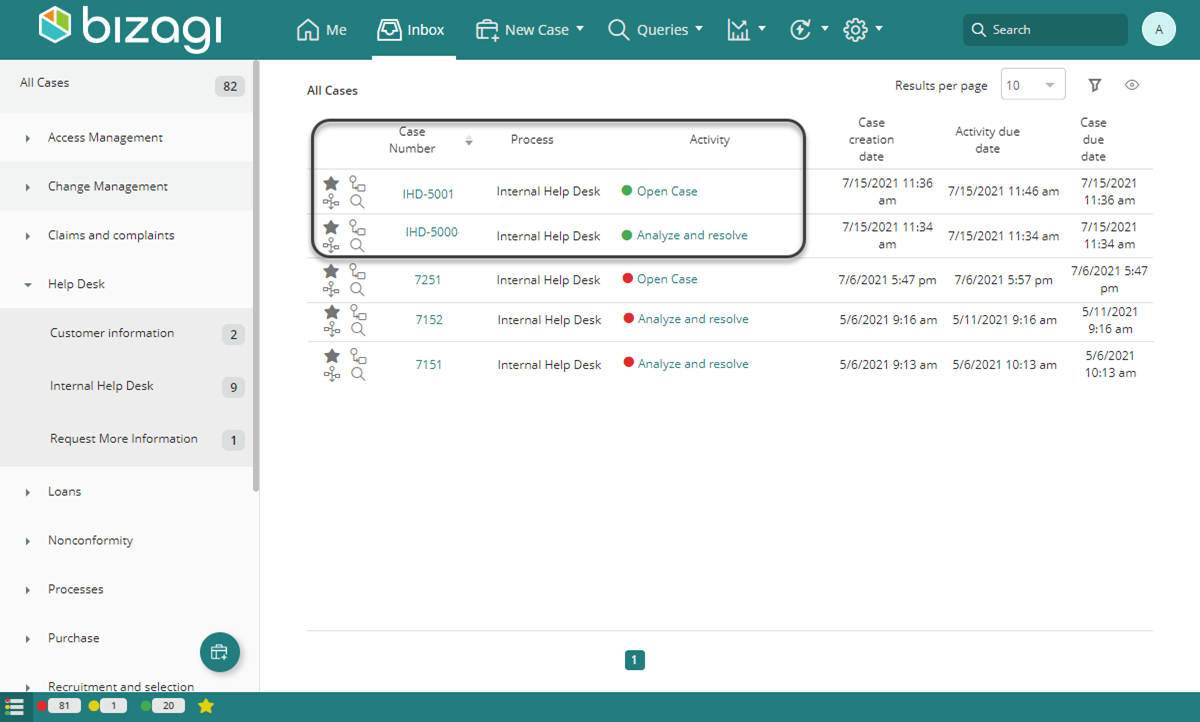
You can view the Case Numbers for the Invoice Generation process in the Work Portal.
Defining Case Numbers by Rule
With a rule, you use an Expression to determine how to build the Case Number. You can identify the process and use its corresponding sequence, obtain a value from a Vocabulary, or include the current date. For example, you can combine a process prefix, a sequence value, and the year of creation in the same Case Number.
In this example, your company manages three processes in different Applications: Internal Help Desk, Claims and Complaints Management, and Sales Opportunity Management. You want each Case Number to follow these formats:
•Internal Help Desk: IHD - Sequence - Year
•Claims and Complaints Management: CCM - Sequence - Year
•Sales Opportunity Management: OPM - Sequence - Year
To configure the Case Numbers, follow these steps:
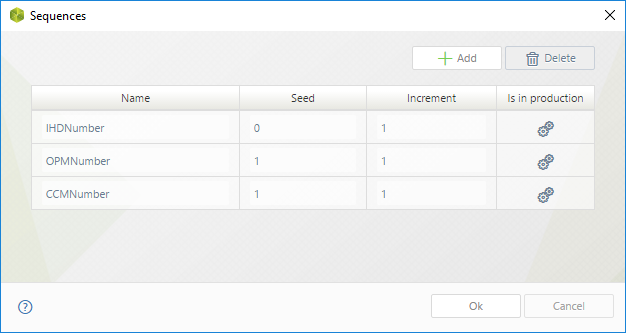
1. In the Sequences menu, create IHDNumber, CCMNumber, and OPMNumber. Set the Seed and Increment to 1 for each sequence.
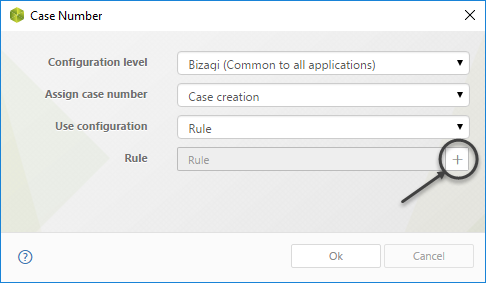
2. Open the Case Numbering menu and configure the following fields:
•Configuration Level: Bizagi, to apply the Case Number rule across all Applications.
•Assign the Case Number at: Case Creation, to assign the Case Number when you create a case.
•Use Configuration: By rule, to obtain the Case Number from an Expression.
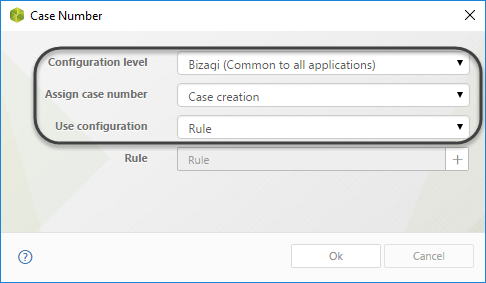
3. Click the square button on the right to define an Expression that identifies each process.
In the Expression editor, enter the following code:
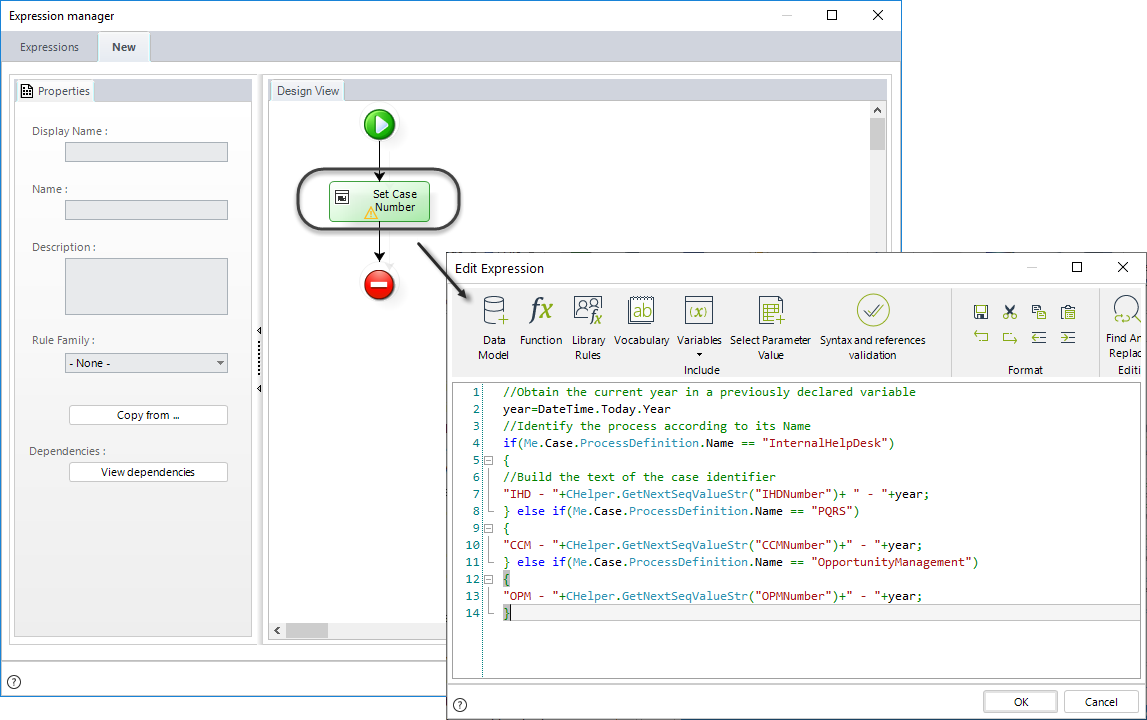
//Obtain the current year in a previously declared variable
year=DateTime.Today.Year
//Identify the process according to its Name
if(Me.Case.ProcessDefinition.Name == "InternalHelpDesk")
{
//Build the text of the case identifier
"IHD - "+CHelper.GetNextSeqValueStr("IHDNumber")+ " - "+year;
} else if(Me.Case.ProcessDefinition.Name == "PQRS")
{
"CCM - "+CHelper.GetNextSeqValueStr("CCMNumber")+" - "+year;
} else if(Me.Case.ProcessDefinition.Name == "OpportunityManagement")
{
"OPM - "+CHelper.GetNextSeqValueStr("OPMNumber")+" - "+year;
}
|
You can find the process name in the process version properties, under the Processes view in the Expert View. |
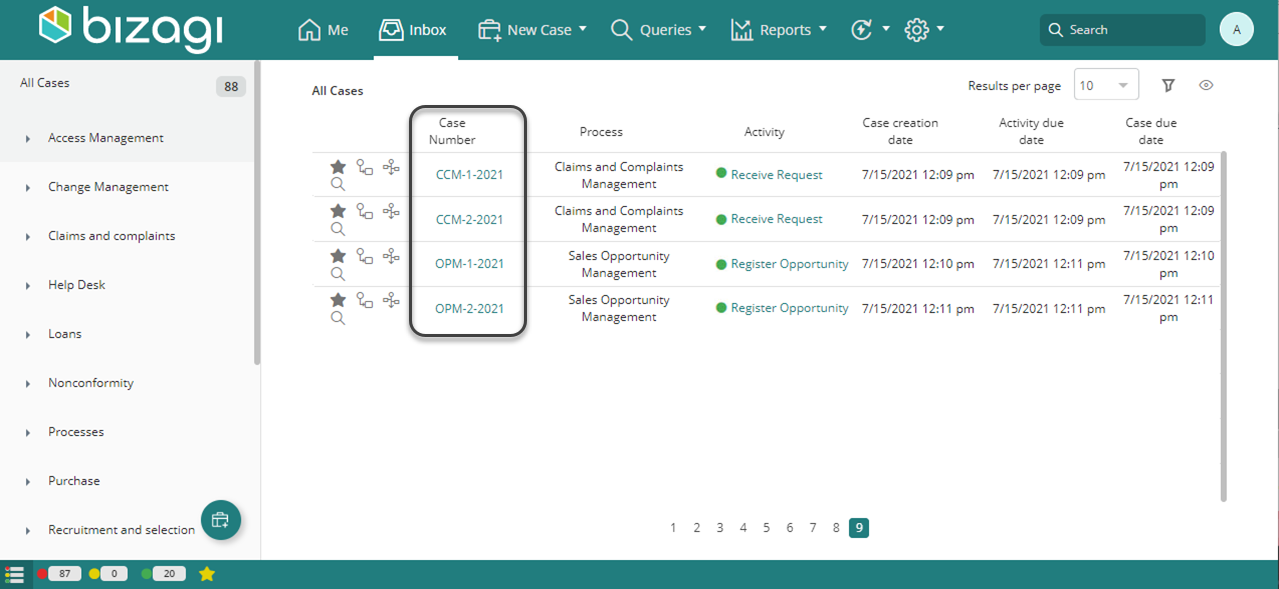
The rule obtains the current year, identifies the process, and builds the Case Number using the corresponding prefix and sequence. You can view the resulting Case Numbers in the Work Portal.
Case Number uniqueness
When you define Case Numbers through a rule, Bizagi does not automatically check for duplicates, allowing you to use repeated numbers when your business needs require them. Different cases can therefore share the same Case Number. For example, reusable subprocess instances from different parent cases can use the same number.
Repeated Case Numbers can make it difficult to distinguish cases in Inbox and search results. In Inbox, the All cases counter counts at the Case Number level, not at the task level. You can therefore see multiple entries with the same number while the counter shows a lower total.
|
•To avoid these issues, configure your rule to generate unique Case Numbers. •Uniqueness is a recommendation, not a requirement; you can use repeated numbers when necessary. |
Last Updated 10/8/2026 6:12:58 PM