Overview
The following example uses the Component Library feature to register a custom component that uses an external API.
For more information about this possibility, refer back to Custom components.
What you need to do in Bizagi
To use the Component Library feature, follow these steps:
1.Build your component (a compiled output).
2.Register the component in Bizagi.
3.Create the business rule which invokes the component.
Framework compatibility
When developing a component, you must ensure that it is compiled and works with the framework supported by Bizagi.
In Bizagi 11.x versions, the framework used is .NET Framework version 4.8.
If you are working with higher versions of .NET, an alternative to ensure compatibility is to use .NET Standard version 2.0.
Example
This example uses a sample Credit Request Process.
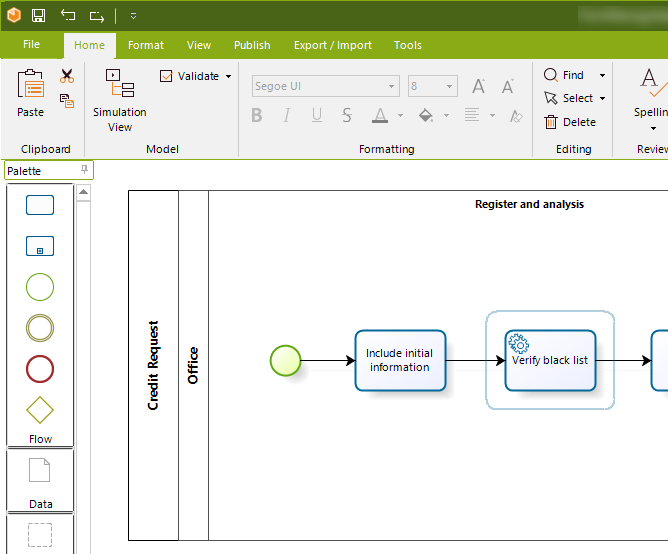
In this simplified example, the Verify black list service task validates that the Applicant is not reported in a central Black List.
In this service task, create a business rule that accesses the custom component to use the external API. Through this API, the rule invokes a method that returns whether or not the applicant's id is listed in the Blacklist (true or false).
The following steps illustrate how to use the Component Library feature.
Building your component (a compiled output)
Develop the component as a class library project.
The sample component, MyCreditBureauComponent, uses CreditBureau.dll, which represents an example API.
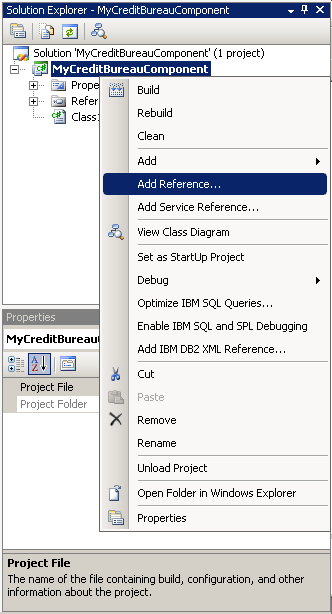
Include the reference in the component.
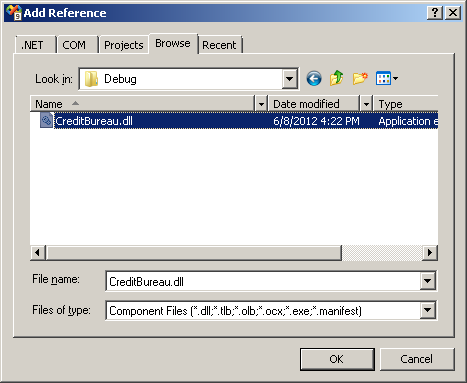
Build the class library project as a .dll assembly.
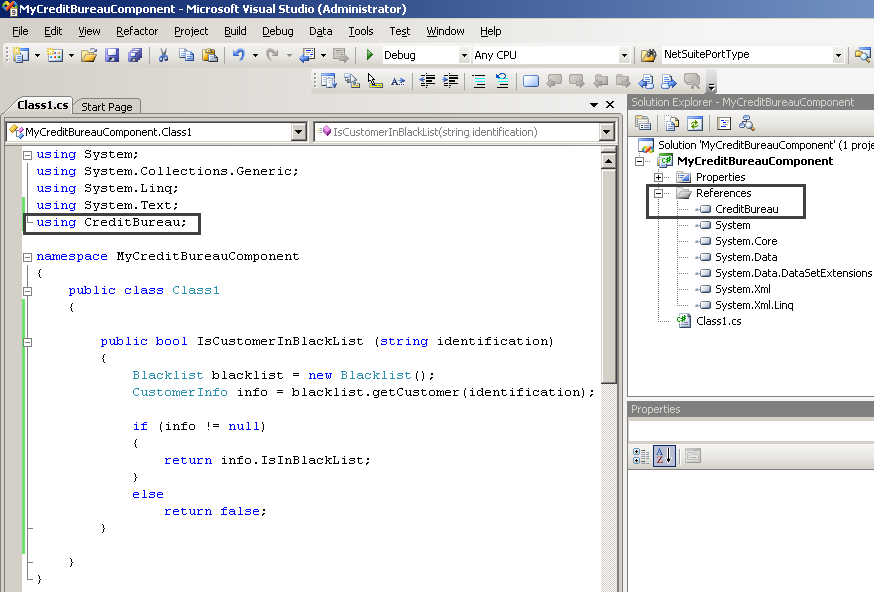
The component’s namespace is MyCreditBureauComponent, and its public class is called “Class1”. This example uses the IsCustomerInBlackList method.
Registering the component in Bizagi
After building the component’s assembly in the previous step, use the MyCreditBureauComponent.dll output to register the component in Bizagi's component library.
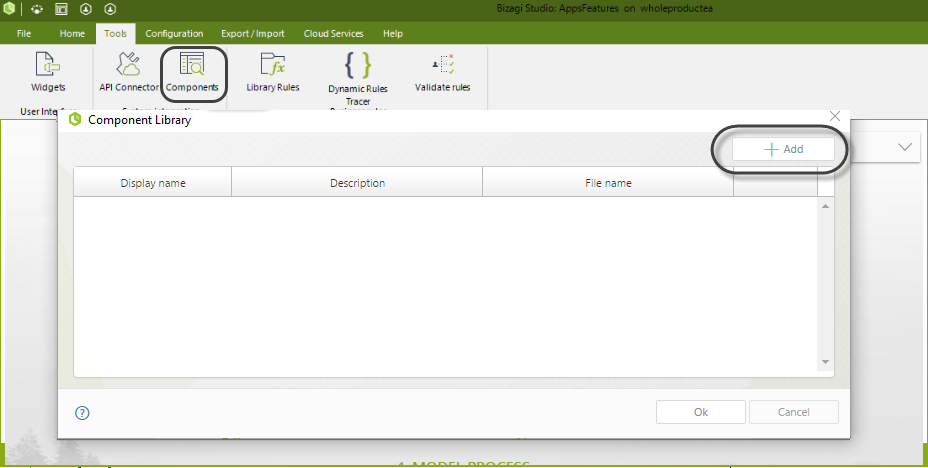
In Bizagi Studio, go to Tools and add a new component:
Find MyCreditBureauComponent.dll and click Open to upload the assembly:
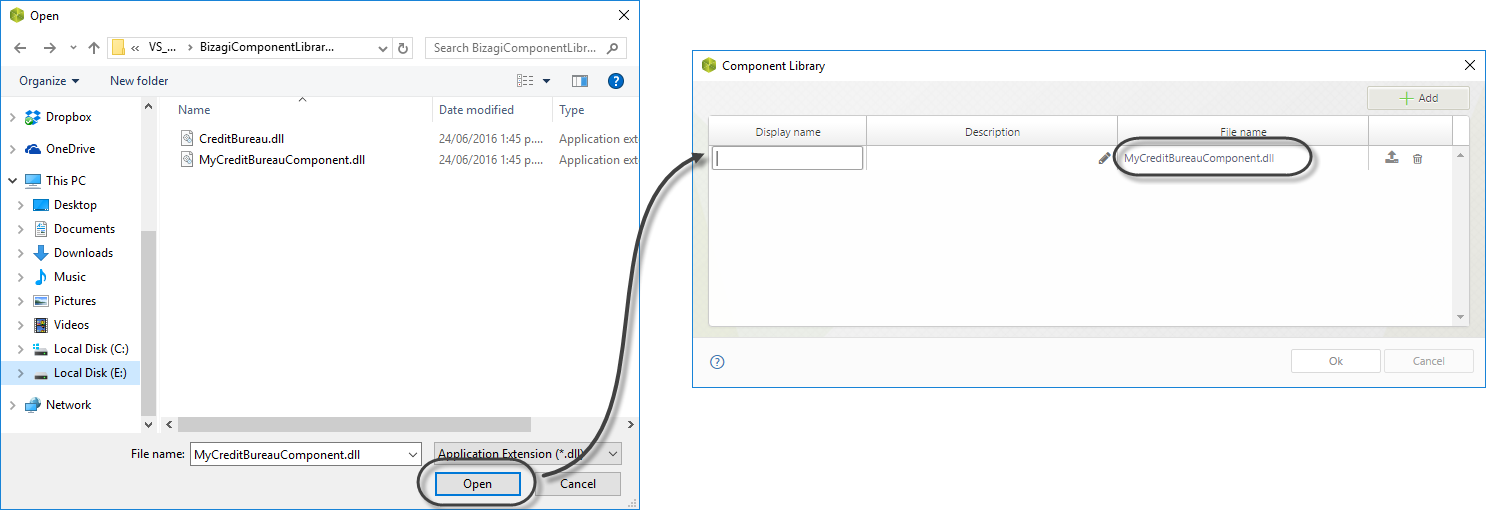
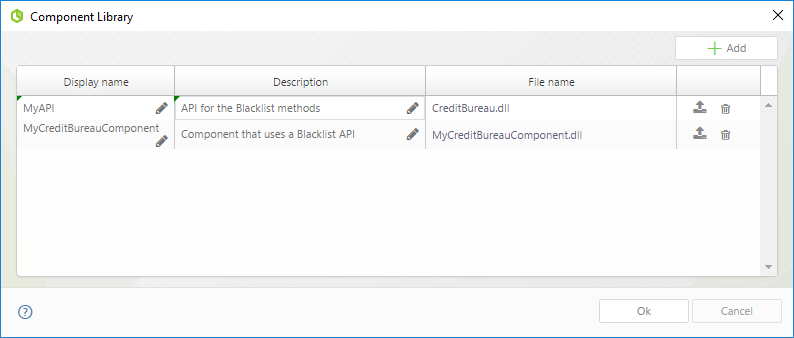
Once the component is added, give a Display name and a Description.
Because this component references and uses another class library (the API), also register and include this API in the component library.
Repeat the steps to add a component, this time for the CreditBureau.dll assembly.
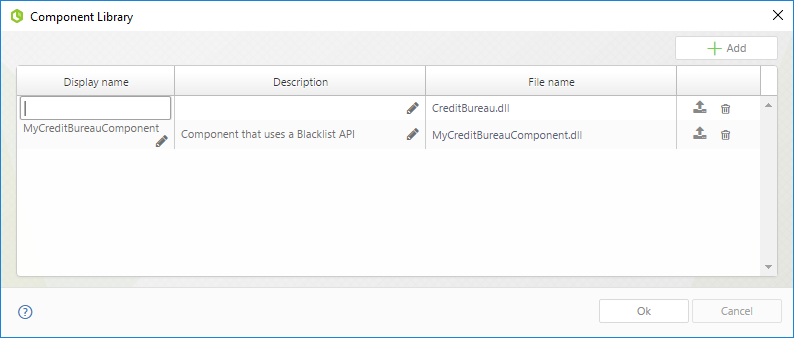
At the end of these steps, the two assemblies must appear as two separate components:
Creating the business rule which invokes the component
After registering the component in the component library, create a business rule which invokes the component’s method.
|
For the sake of simplicity, the following example shows how to call this component directly within a business rule.
However, to improve the maintainability of your solution, create a global rule (a library rule) that receives input parameters, invokes the component and returns output parameters. This way, business rules call this global rule, and you have a single point in Bizagi coupled to your component.
Members of your team working on the same project just need to know which global rule to use.
For more information about global rules (library rules), refer to Reusing business rules. |

Go to the Activity Actions view in the Process wizard, and select the Verify black list service task. Add a business rule at this point in the Process:
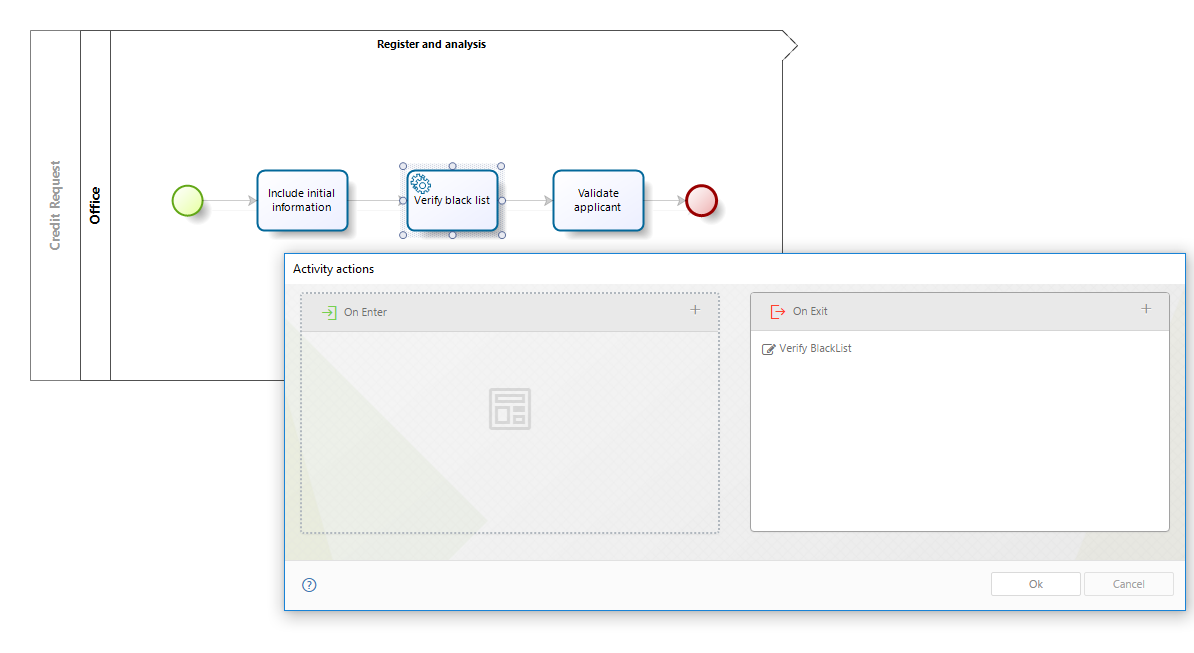
In the expression, invoke the MyCreditBureauComponent method with the following syntax:
Class.Method
The class is not defined as a static class, so create an instance before invoking its methods. In this example, the complete expression invokes the IsCustomerInBlackList method by:
•Sending out the Applicant’s id.
•Storing the method’s result in the CreditRequest.InBlackList Boolean-type attribute.
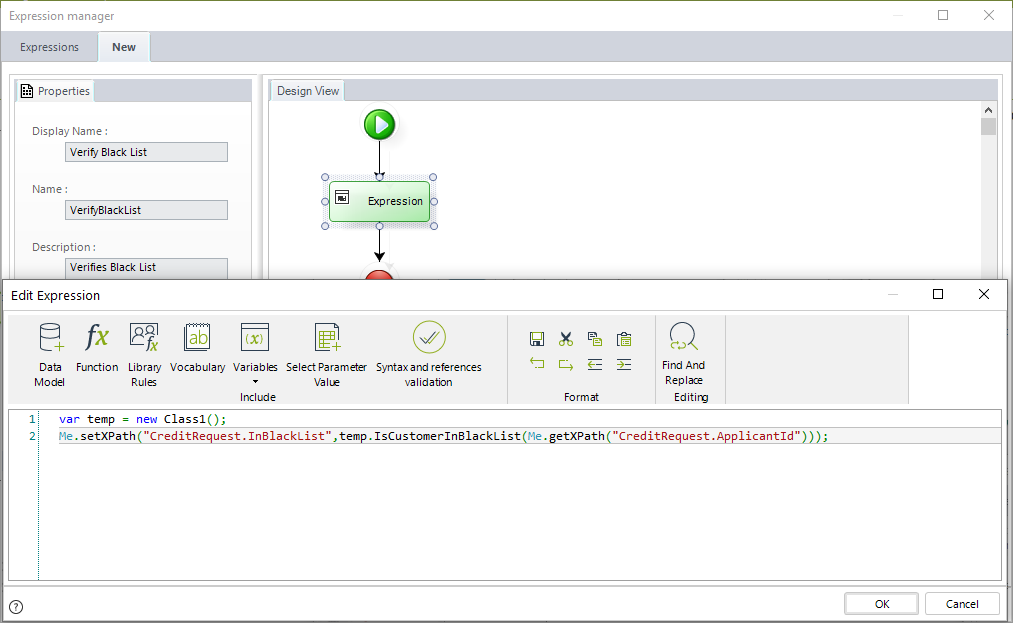
This is the expression’s content:
var temp = new Class1();
Me.setXPath("CreditRequest.InBlackList",temp.IsCustomerInBlackList(Me.getXPath("CreditRequest.ApplicantId")));
The custom component is ready to use through the Component Library feature in Bizagi.
Execution
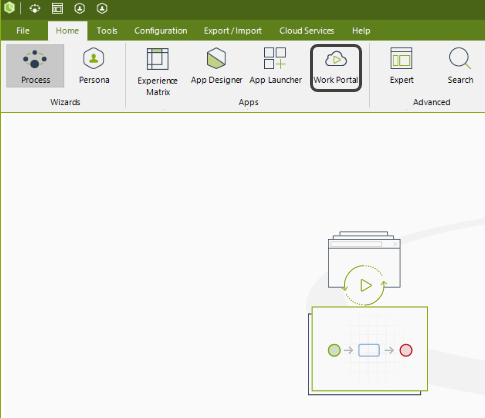
To see this example working, execute the Process in Bizagi's Work Portal by clicking theWork Portal button:
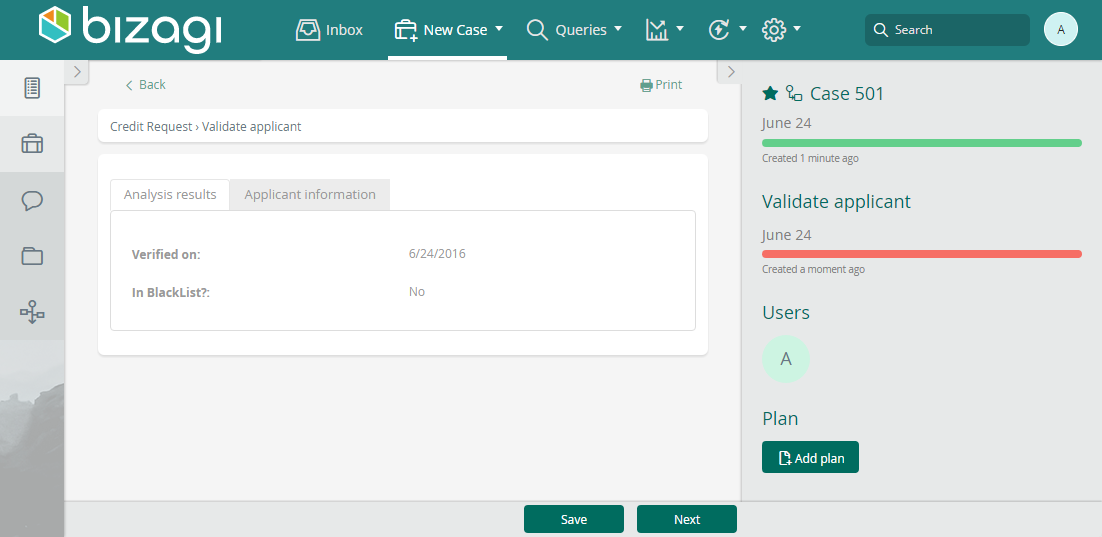
After the Verify black list service task, the next Activity shows the result of the component’s method invocation:
Last Updated 10/21/2026 12:49:55 PM