Overview
Bizagi allows you to connect Dropbox and SharePoint accounts through the Trigger feature. This enables you to automate actions, such as creating cases, in response to events in your cloud systems.
Configure Objects in Dropbox
To connect your Dropbox account with a Trigger, follow the next steps:
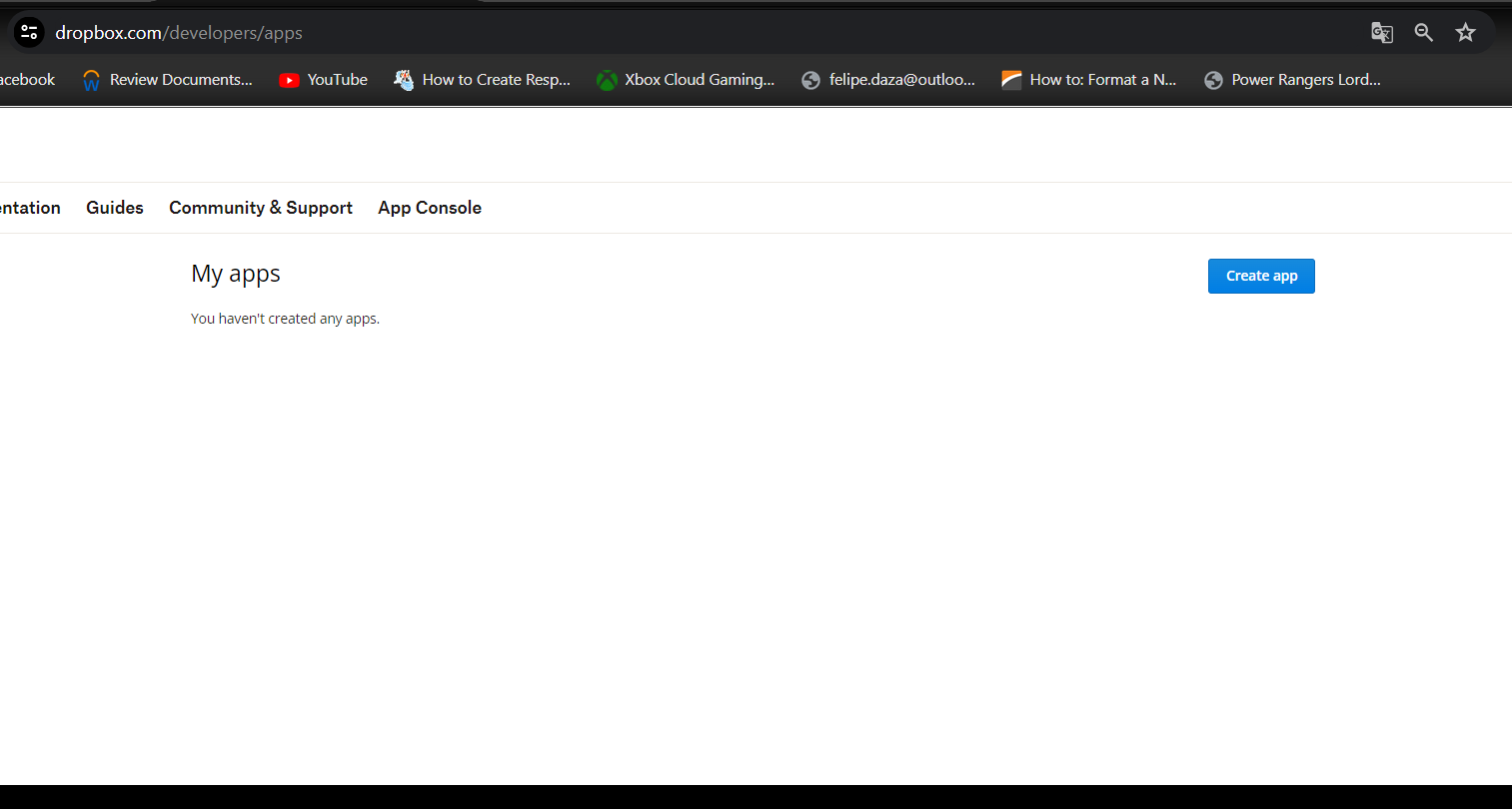
1.In a Browser, log into your Dropbox developer account. To do so follow the link: https://www.dropbox.com/developers/apps
2.Click the Create app button.
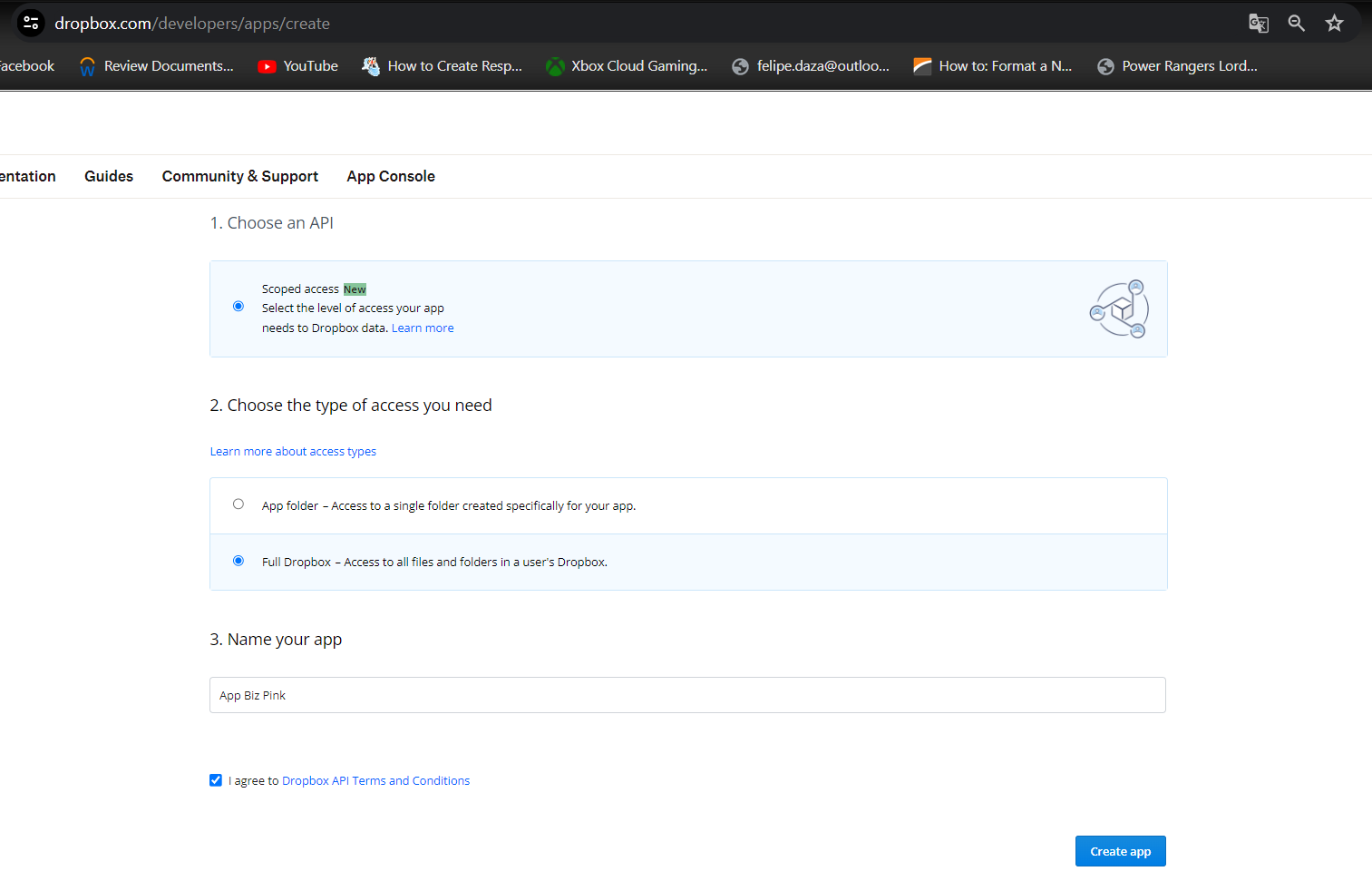
3.Type a name and then click the Create app button.
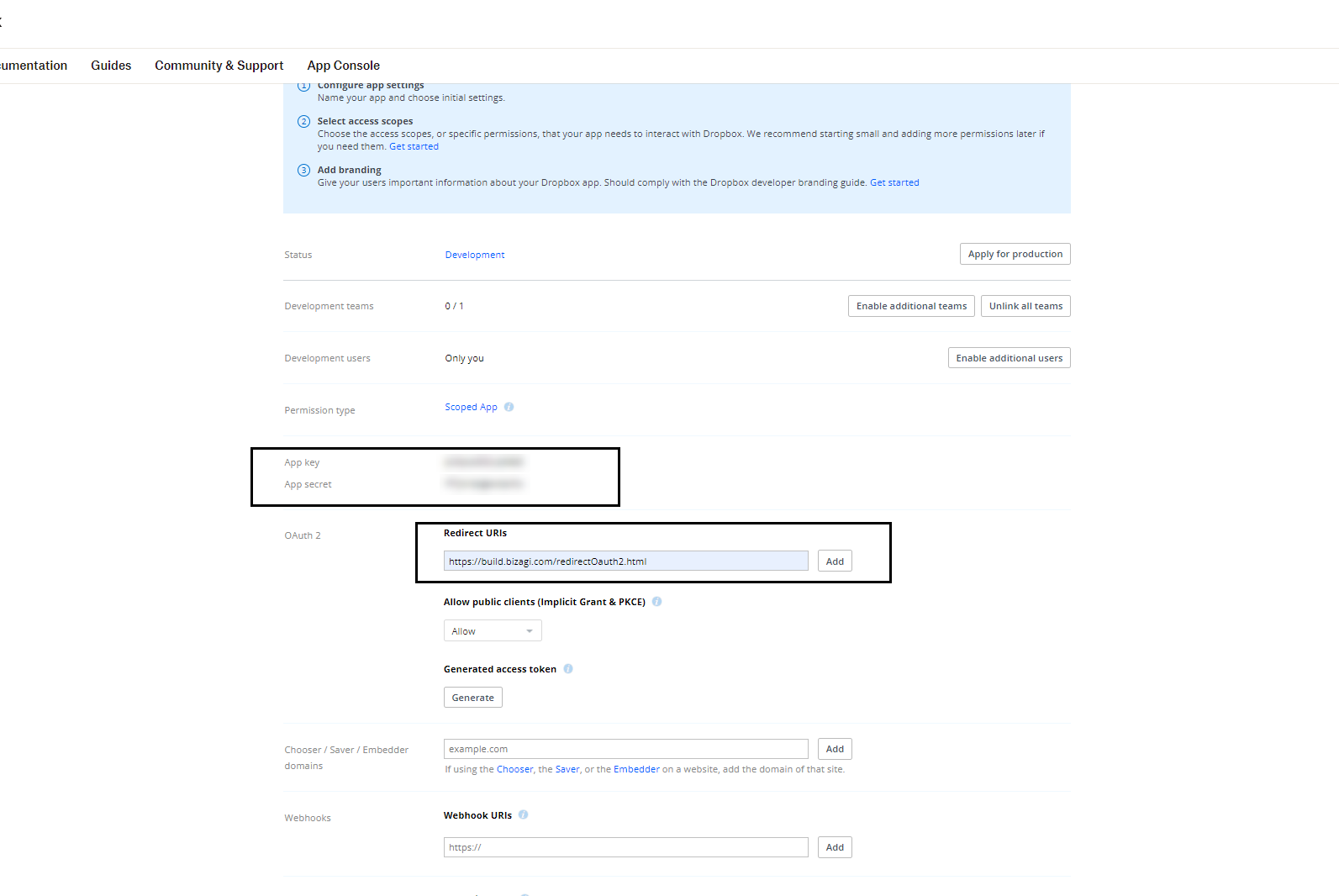
4.In the app configuration screen, enter the following values:
•App-key: Studio's ClientId
•App-secret: ClientSecret in Studio
•RedirectUri: https://build.bizagi.com/redirectOauth2.html
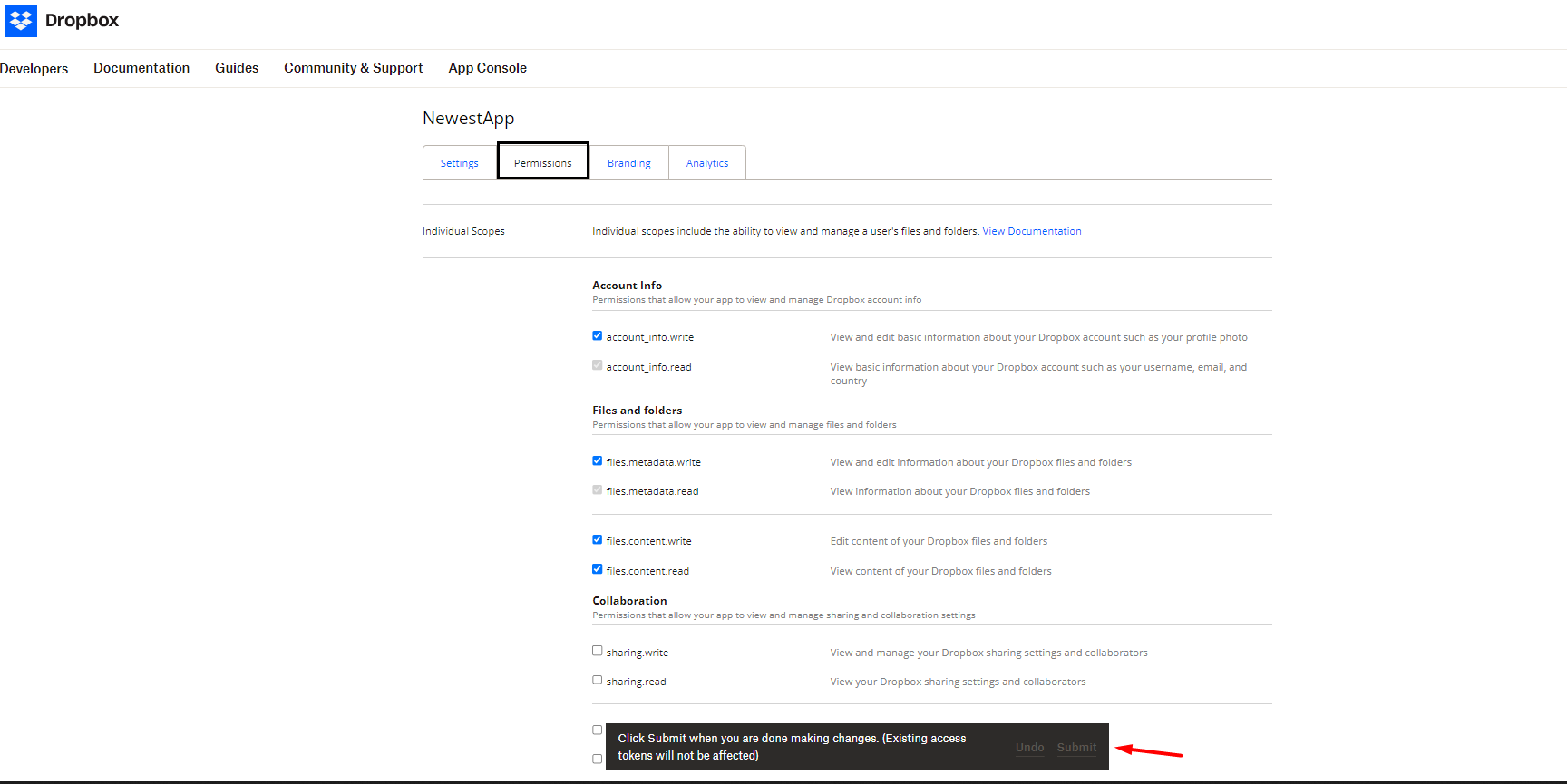
5.In the next tab you must assign the following permissions for your app:
•account_info.write
•files.metadata.write
•files.content.write
•files.content.read
Configure Objects in SharePoint
When you configure a Trigger connected to SharePoint, Bizagi monitors the files stored in the selected list and can start cases when new files are added.
To configure a list in SharePoint, follow the next steps:
1.Log in to your SharePoint account.
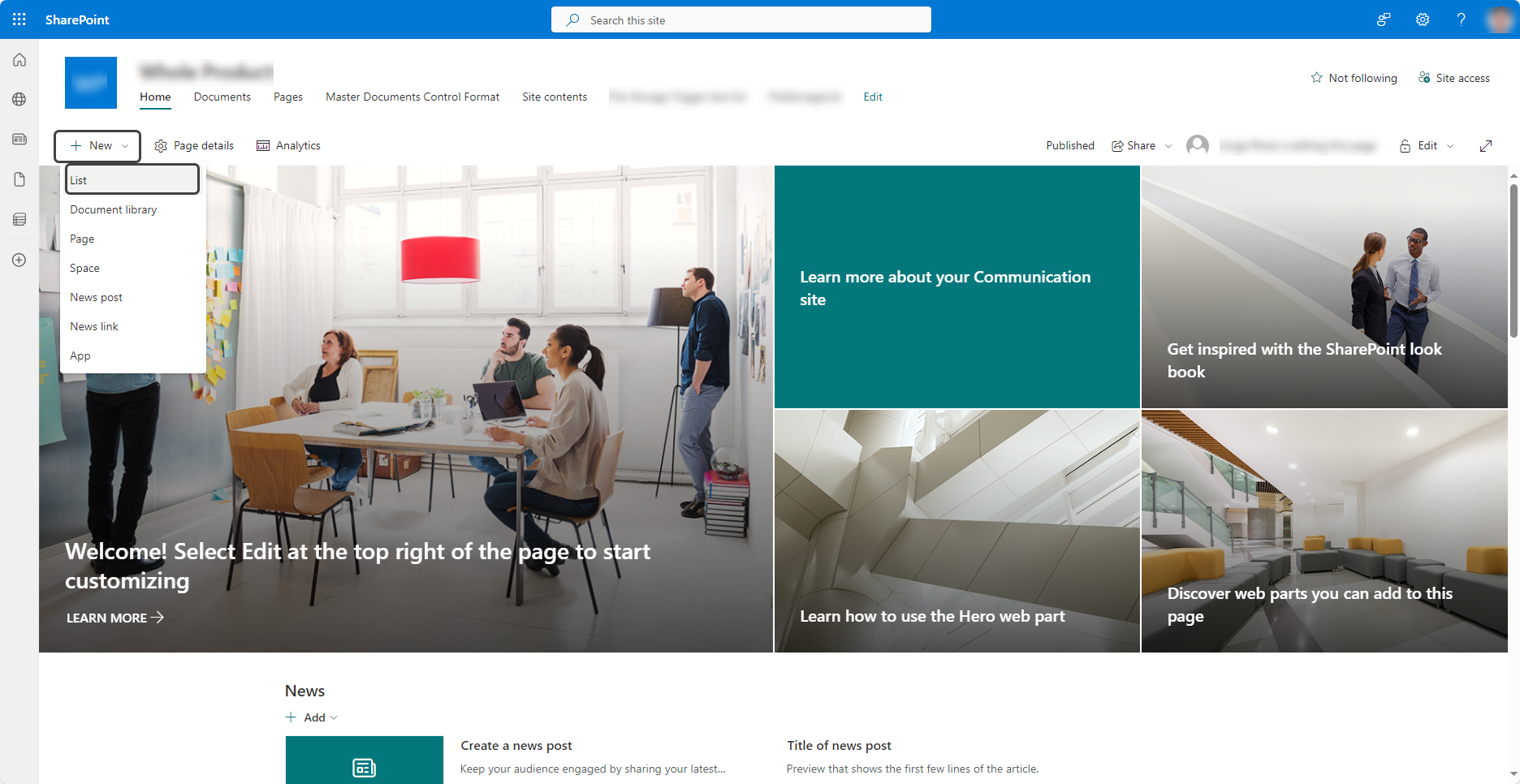
2.At the top left of the screen, click the +New button and then, select the List option.
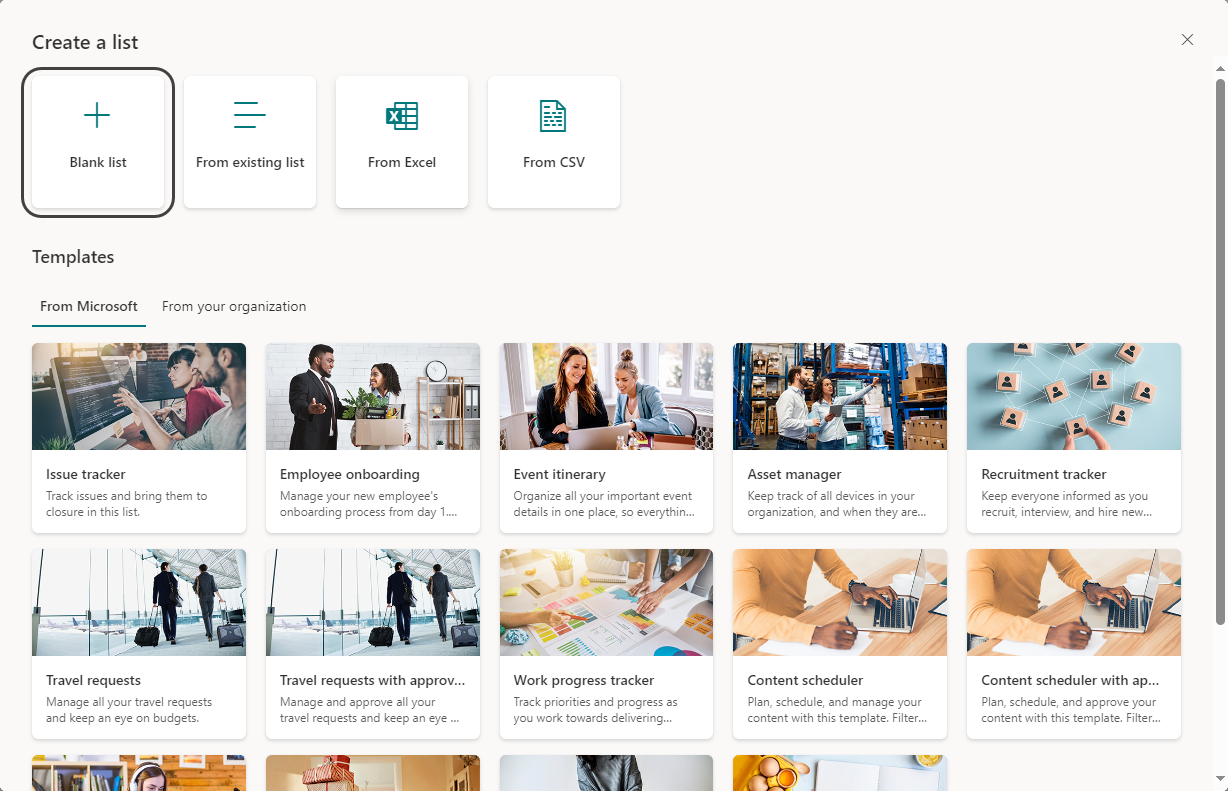
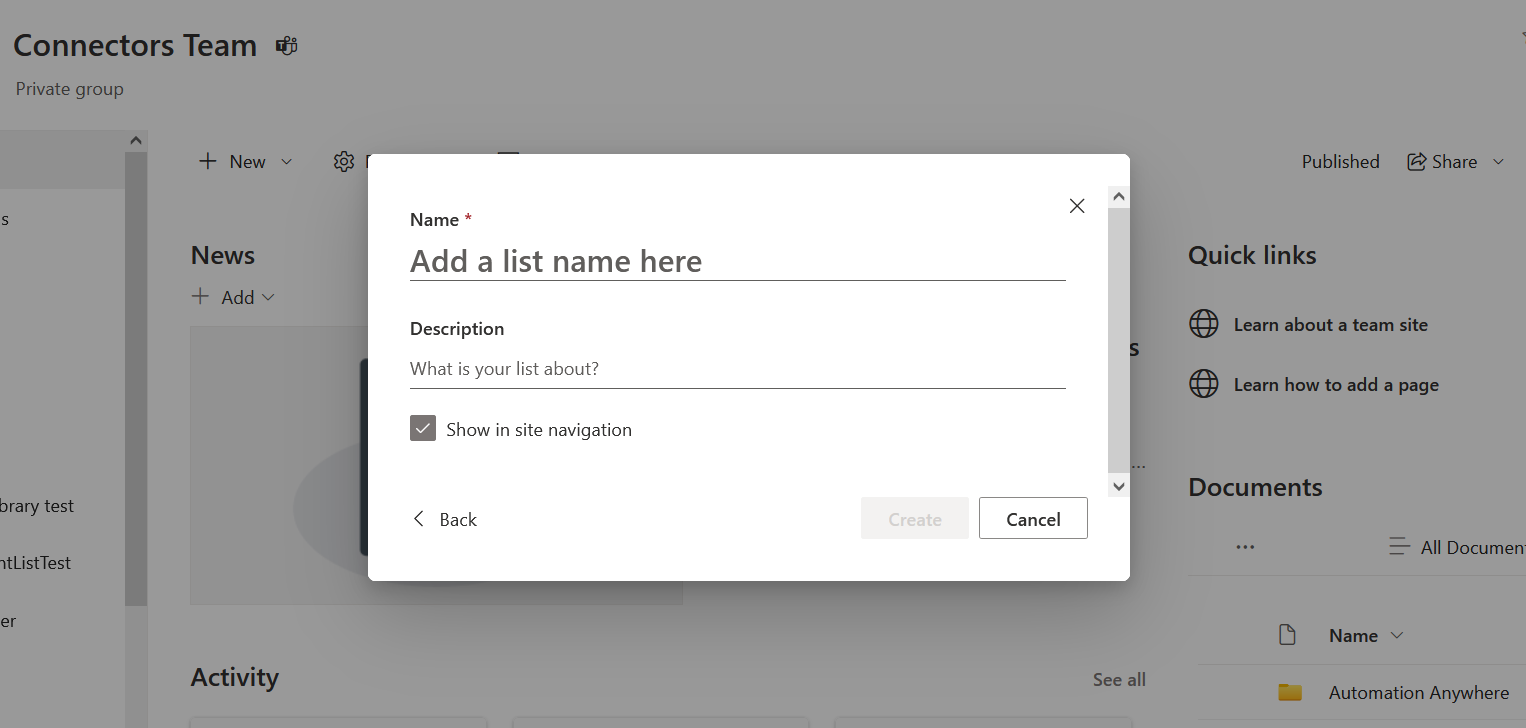
3.Then, select the Blank List option in the Create a list section.
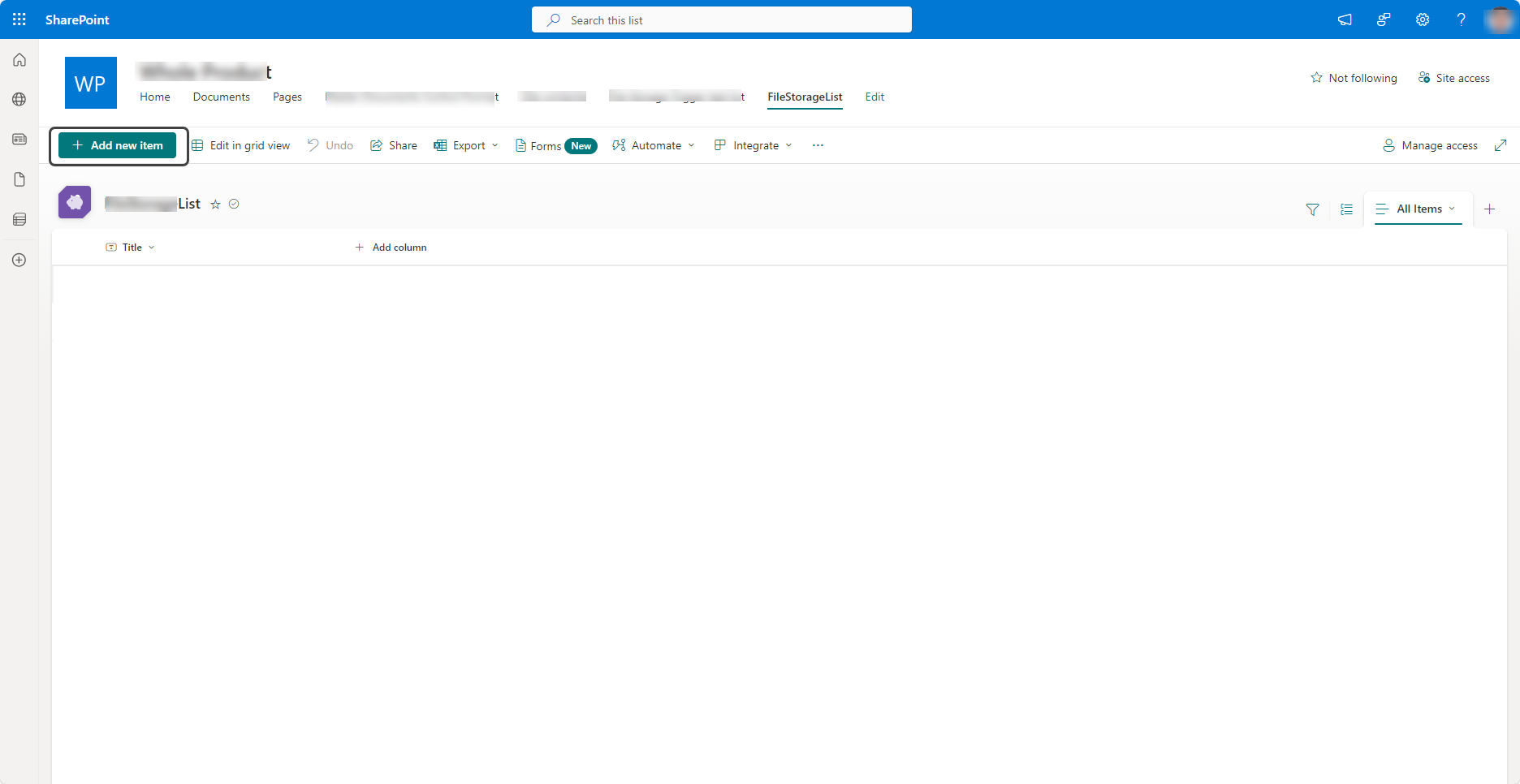
4.To add files into the list, click the + Add new item button located in the upper left section of the screen.
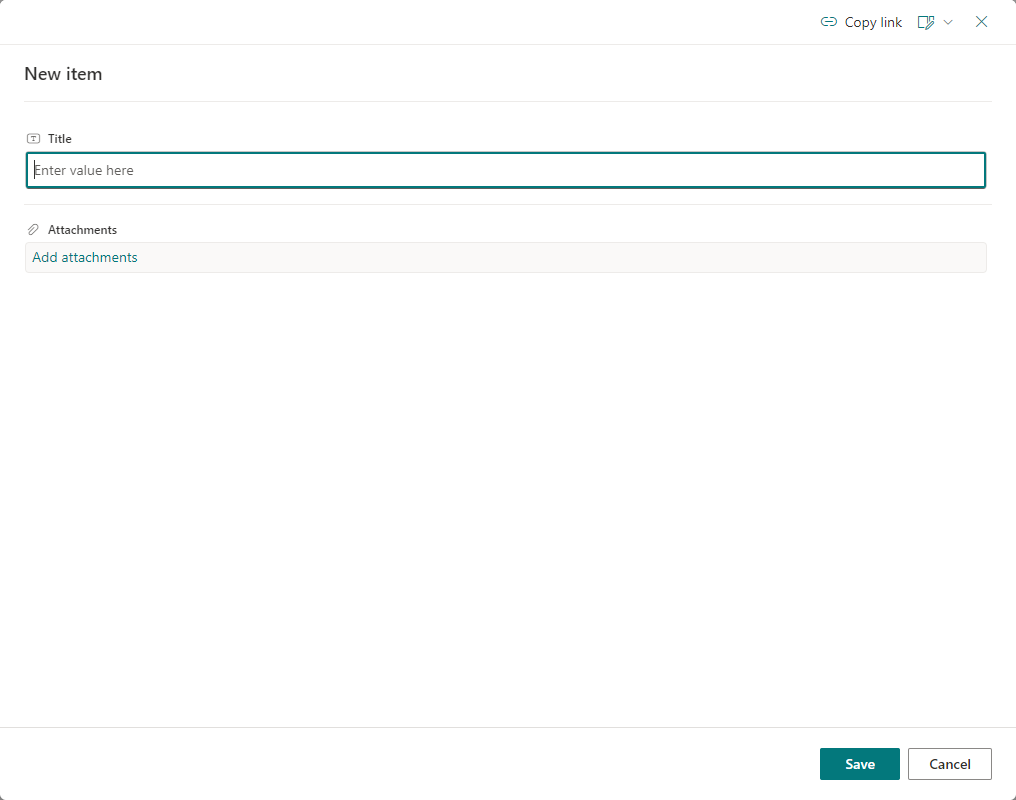
5.In the New Item window, add a Title for the file and in the Attachment field, upload the corresponding file. Once the changes have been made, click the Save button.
App Registration in Entra ID
In this step, ask your Microsoft 365 administrator to register an application in Entra ID.
Application registration in Entra ID allows Bizagi to authenticate and connect to Microsoft services such as SharePoint., such as SharePoint, using authentication protocols such as OAuth 2.
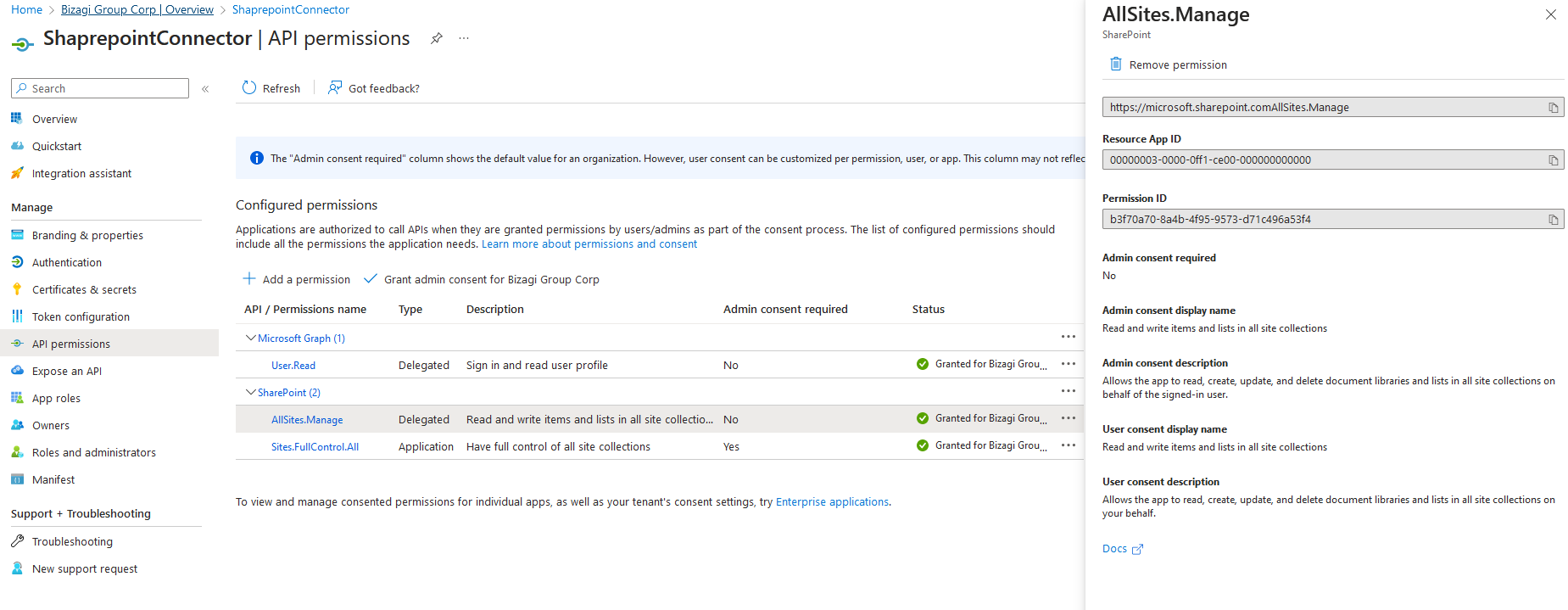
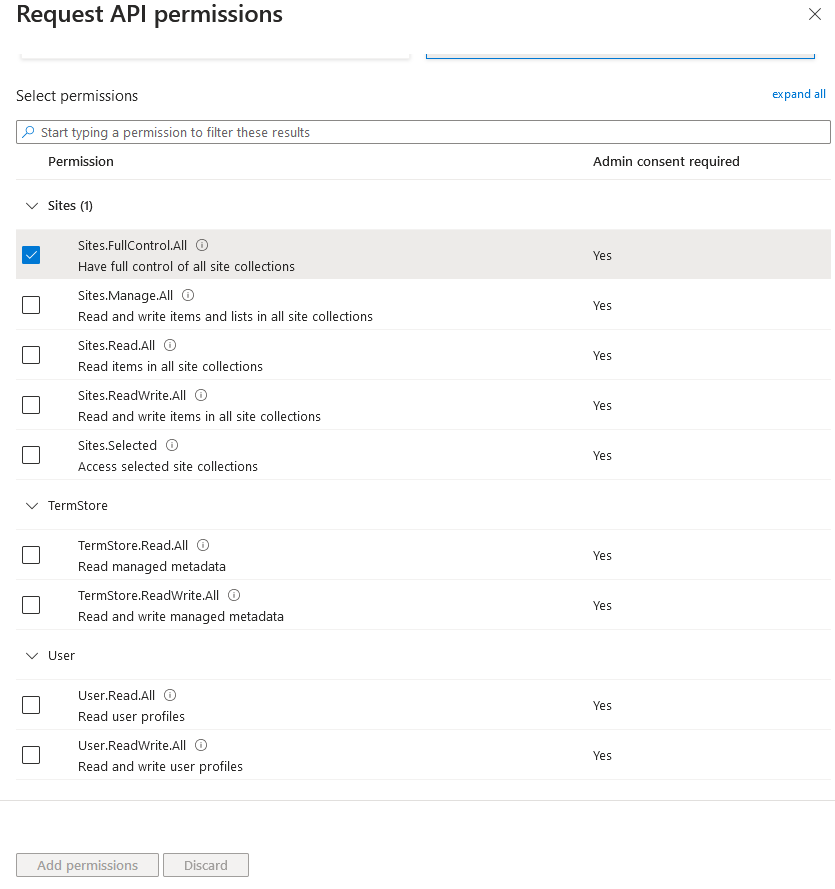
Configure the following permissions for the application:
•Microsoft Graph: * User.Read: Log in and read a user's profile.
•SharePoint:
o* AllSites.Manage: Reads and writes items and lists in all collections.
o* Sites.FullControl: Allows to have full control of all collections.
Once your administrator has completed the application registration process, it is necessary to request the following parameters:
•Client Id
•Client Secret
•Tenant Name
•Tenant Id
•Resource Id
With the above parameters available, you have the necessary information to continue with the configuration of the Trigger in Bizagi Studio.
|
The Trigger only works with files added to the configured list after the Trigger is set up. |

Last Updated 10/2/2026 11:55:59 AM