Overview
Bizagi supports integration with any Identity and Access Management system that complies with the SAML 2.0 protocol.
SAML 2.0 is the most widely adopted industry protocol for authentication, and most major Identity Managers on the market support it.
SAML authentication involves three different message types:
•SAML Assertion: Contains the information that identifies a user. It is generated by the Identity Provider (IdP) and validated by Bizagi.
•SAML Request: A request generated by Bizagi and sent to the IdP. Bizagi generates two types of requests: authentication requests, known as AuthnRequest messages, and logout requests, known as LogoutRequest messages.
•SAML Response: A response generated by the IdP after receiving a request from Bizagi. A SAML Response can contain one or more SAML Assertions.
Understanding these message types helps you correctly configure signing and encryption certificates.
Prerequisites
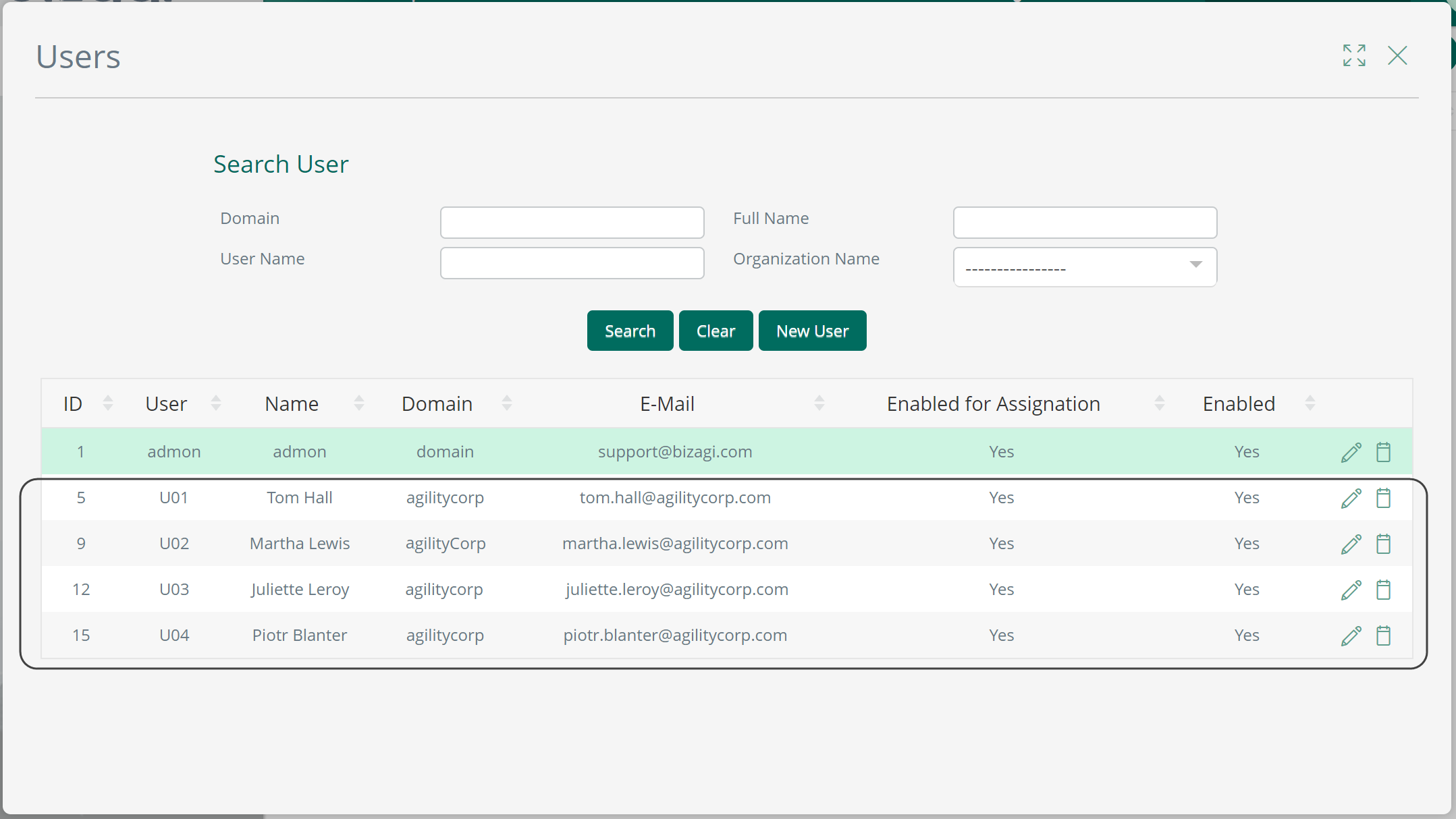
To configure SAML 2.0, you need to have already imported and synchronized your users into Bizagi.
When integrating any Identity Manager, you need to synchronize authorized accounts so they can access Bizagi's Work Portal. Synchronizing means importing or updating only the account's primary identifiers, typically the domain and username or the email address.
Bizagi does not store passwords when integrating an Identity Manager.
|
You cannot have two or more users with the same email address because it is considered part of the primary identifier. |

After verifying in the Work Portal that at least an initial import of your users into Bizagi has been completed, you can proceed with the configuration.
|
In Bizagi, unique identifiers for users are either their email address or the combination of their domain and username. We recommend using the email address as the unique identifier. |
How to configure SAML based authentication
To configure an IdP using the SAML 2.0 protocol, follow these steps:
1. Generate certificates (mandatory)
We recommend generating certificates directly from the Customer Portal. Alternatively, you can use certificates generated by a certification authority (CA) or another trusted source.
If you need guidance, refer to Certificates for SAML 2.0 authentication.
Before proceeding, you must have:
•A signing certificate (mandatory) in P12 or PFX format, including the password defined when you exported the public and private keys.
•An encryption certificate (optional) in P12 or PFX format, including the password defined when you exported the public and private keys.
The signing certificate is used to sign the SAML Requests generated by Bizagi, including AuthnRequest and LogoutRequest messages.
|
You are responsible for managing your certificates, including monitoring their expiration dates and maintaining any related IdP configuration, such as changes to the IdP endpoints. |
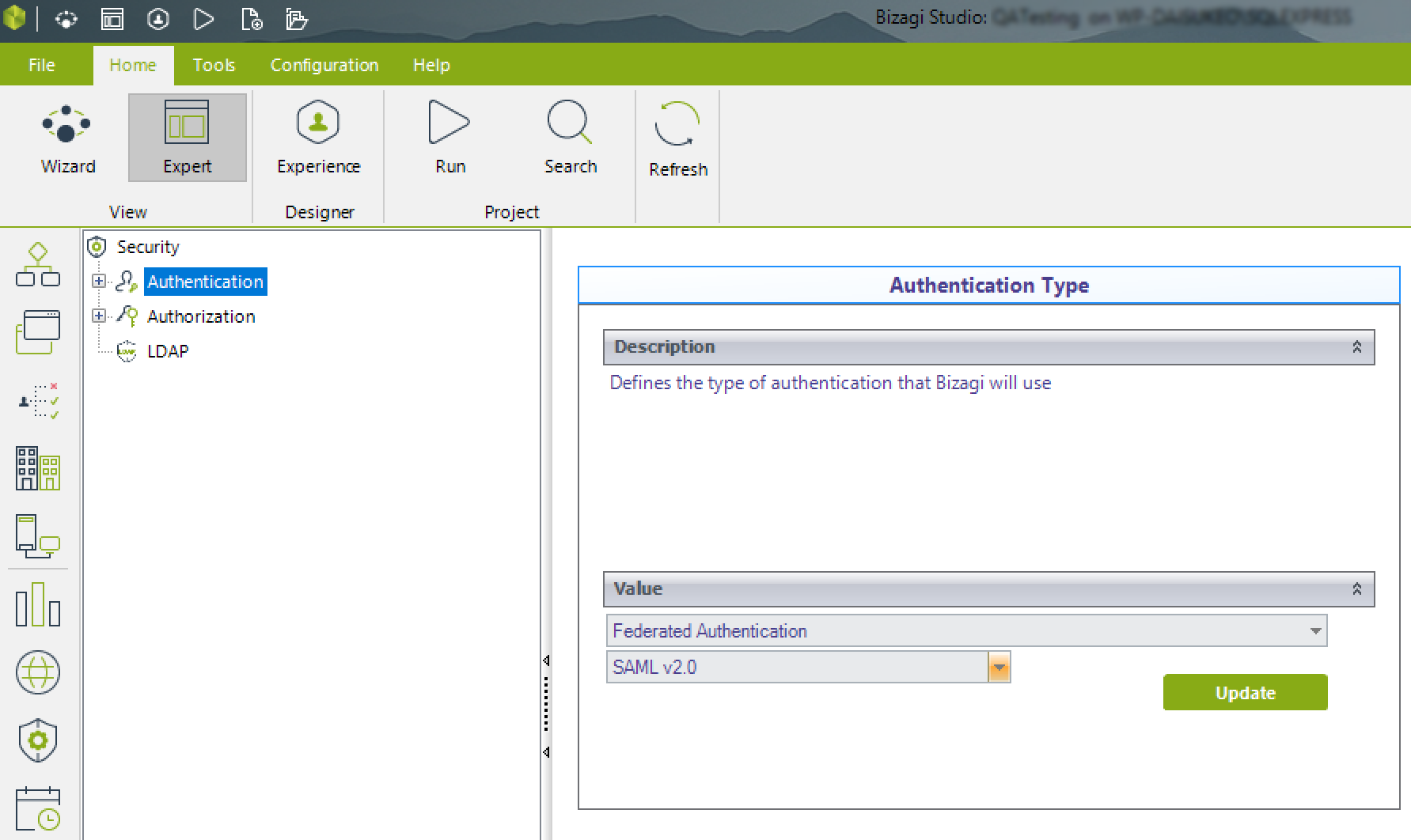
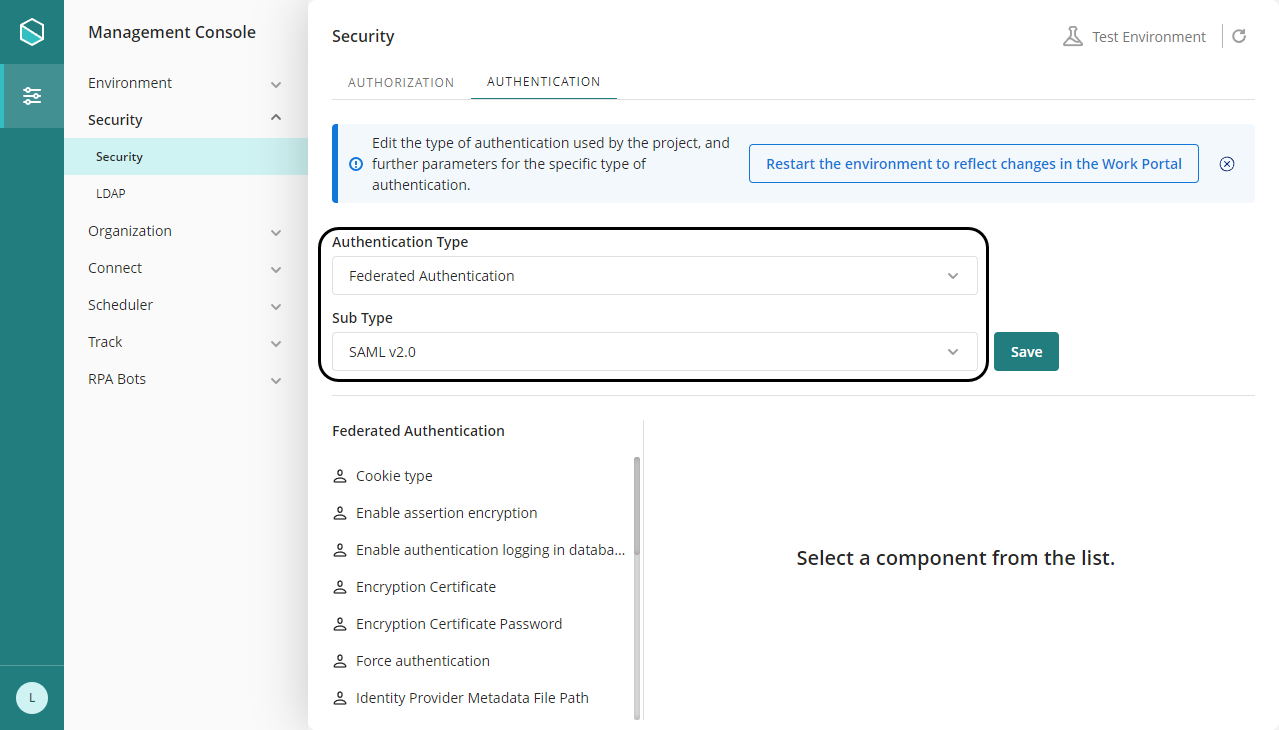
2. Set up the IdP in Bizagi Studio or the Management Console
If you are configuring the Development environment, open Bizagi Studio. For Test and Production environments, open the Management Console.
Locate the Security module and select the Authentication option under the Security node.
Select Federated authentication from the drop down list in the panel on the right, and then select SAML v2.0 from the lower drop down list.
|
In the Management Console, before modifying the authentication configuration, set the environment status to Maintenance from the Maintenance window. After completing the required modifications, restart the environment to apply the changes. |
Within these settings, configure the following options:
Enable assertion encryption
Bizagi supports receiving encrypted SAML Assertions and sending encrypted logout requests. Both message types can contain sensitive information and can be encrypted using the configured encryption certificate.
The following message types can be protected by the encryption certificate:
•SAML Assertions: Generated by the IdP and sent to Bizagi. These messages contain user attributes and authentication information.
•Logout requests: Generated by Bizagi and sent to the IdP.
If you set this option to On, both the SAML Assertion sent by the IdP to Bizagi and the LogoutRequest sent by Bizagi to the IdP are encrypted using the configured encryption certificate.
Ensure that your IdP supports issuing encrypted SAML Assertions and receiving encrypted logout requests.
Okta does not support receiving encrypted messages. Therefore, this option must be set to Off when using Okta.
Enable authentication logging in database
Set this option to On to have the web application log every authentication event. You can view the log from the Work Portal.
Encryption certificate
Use the Browse button to locate and upload the digital certificate in P12 or PFX format containing the public and private keys used for encryption operations.
This setting applies when Enable assertion encryption is enabled.
Although you can reuse the certificate configured in the Signing certificate setting, we recommend using different certificates, especially in Production environments.
Bizagi supports self signed certificates. For guidance, refer to Authentication Certificates in the Customer Portal.
The P12 format is equivalent to the PFX format. If you have a PFX file, rename the file by changing its extension.
Encryption certificate password
Enter the password associated with the encryption certificate.
This setting applies when Enable assertion encryption is enabled.
Force authentication
Set this option to On to avoid SSO capabilities and request credentials every time users attempt to sign in to Bizagi.
Identity Provider Metadata File Path
Provide the location of the IdP metadata. This location is usually a URL.
We recommend using the IdP metadata URL whenever the IdP exposes a metadata endpoint. When you use the metadata URL, Bizagi retrieves the metadata directly from the IdP, including updated certificates published in the metadata.
Using the metadata URL reduces maintenance tasks because you do not need to update the metadata configuration manually when the IdP renews or replaces its certificates.
Metadata URLs depend on the IdP. The following are examples:
•Entra ID: https://login.microsoftonline.com/[Tenant]/federationmetadata/2007-06/federationmetadata.xml?appid=[applicationID]
|
The applicationID corresponds to the identifier that Azure assigns to the application whose users are validated during the authentication process. You can obtain this identifier only after registering the application. For more information, refer to Configuring SAML2 with Entra ID. |
•ADFS: https://[my_federateserver]/FederationMetadata/2007-06/FederationMetadata.xml
•OKTA: https://[company].okta.com/app/[id]/sso/saml/metadata
|
You can leave this parameter blank during the initial configuration or use a placeholder URL. After configuring your IdP, enter its metadata URL in this parameter. |
Idle session time-out
Define the number of minutes of inactivity after which a session expires.
Organization name
Provide the name of your organization. The name is included in the SAML messages generated by Bizagi.
Organization URL
Provide the URL of your organization's website. The URL is included in the SAML messages generated by Bizagi.
SAML Protocol Binding for SLO
Select either POST or REDIRECT to define the binding implementation used for single logout.
Verify which SLO binding your IdP supports. When using Entra ID, select REDIRECT.
SAML Protocol Binding for SSO
Select either POST or REDIRECT to define the binding implementation used for single sign on.
Bizagi recommends using POST because it supports larger messages. Verify which SSO bindings your IdP supports.
Service provider URL
Enter the complete URL of the Service Provider, including the project. This is the URL of the Bizagi Work Portal.
For Automation Service, the URL uses the following format:
https://[environment]-[project]-[company].bizagi.com/
The URL is case sensitive. For the Automation Service Production environment, leave [environment]- blank.
Signature certificate password
Enter the password associated with the signing certificate.
Signing algorithm
Select either SHA1 or SHA256.
Signing certificate
Use the Browse button to locate and upload the digital certificate in P12 or PFX format containing the public and private keys used to sign the SAML Requests generated by Bizagi, including AuthnRequest and LogoutRequest messages.
Bizagi supports self signed certificates. For guidance, refer to Authentication Certificates in the Customer Portal.
The P12 format is equivalent to the PFX format. If you have a PFX file, rename the file by changing its extension.
Technical email contact address
Provide an email address for contacting your organization regarding technical issues. The email address is included in the SAML messages generated by Bizagi.
The values you provide for these settings are encrypted in Bizagi when you save them.
After completing this step, Bizagi generates a metadata.xml file. You can use this file as input in the next step.
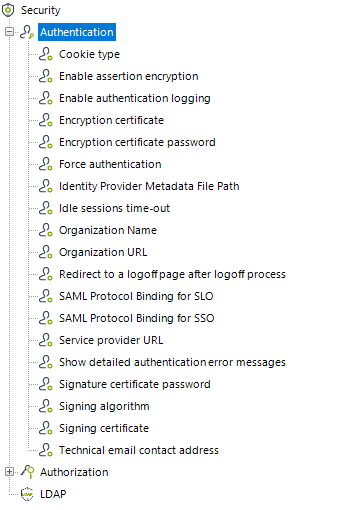
You can also configure or change these parameters from the Management Console.
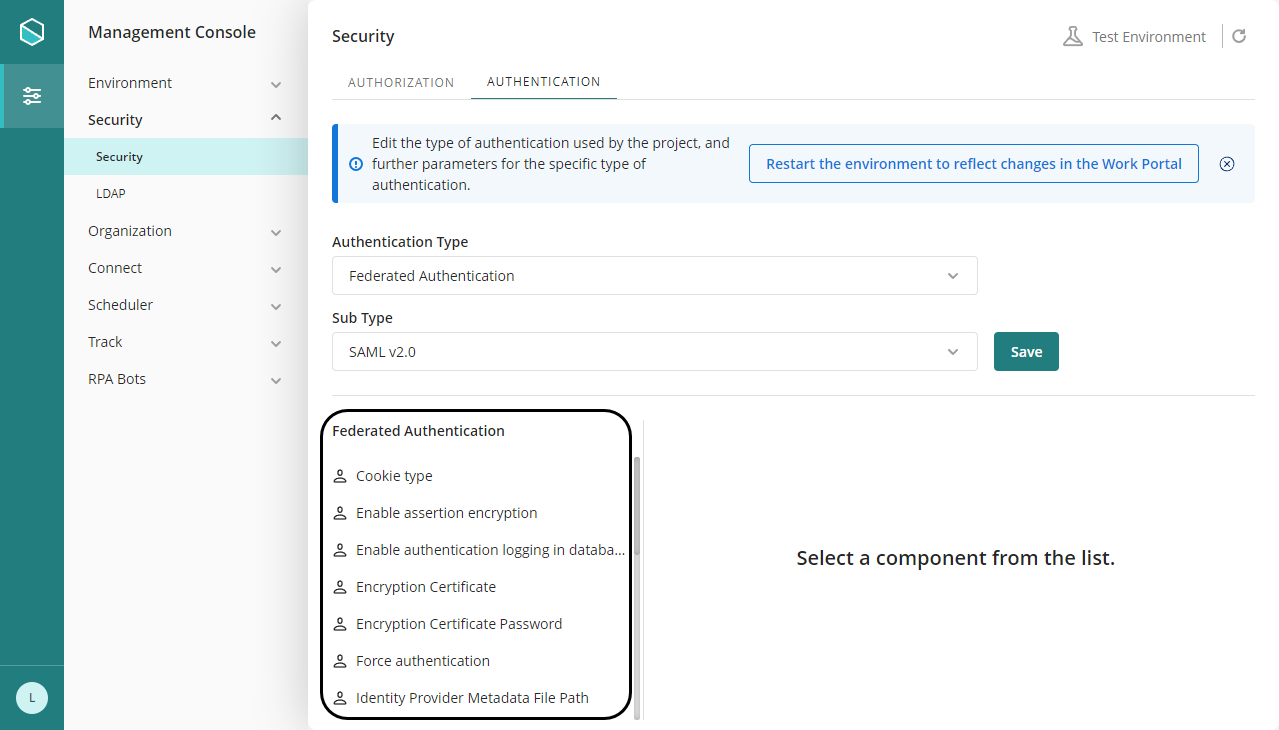
|
In the Management Console, before modifying the authentication configuration, set the environment status to Maintenance from the Maintenance window. After completing the required modifications, restart the environment to apply the changes. |
3. Download the metadata file and upload it to your IdP
Some IdPs require the Service Provider metadata file.
If your IdP requires metadata import, as in an Entra ID configuration, download the metadata generated by Bizagi from the SAML configuration.
This file contains the configuration information required by the IdP, including the public keys associated with the certificates used by Bizagi to sign SAML Requests and support encrypted SAML communications.
Before downloading the metadata file, make sure that:
•A signing certificate has been uploaded.
•The signing certificate password has been configured.
Bizagi provides the following endpoints for previewing and downloading the metadata file.
To preview the metadata file, enter the following endpoint in your browser:
https://[environment]-[project]-[company].bizagi.com/saml2/metadata.xml?mode=preview
To download the metadata file, enter the following endpoint in your browser:
https://[environment]-[project]-[company].bizagi.com/saml2/metadata.xml?mode=attachment
After downloading the file, upload it to the corresponding application in your IdP.
4. Complete the initial setup in your IdP
First, configure the IdP. Refer to the corresponding article for configuration examples:
•ADFS
•Okta
In your IdP administration options, register Bizagi as a trusted Service Provider.
For most IdPs, specify or confirm the Bizagi URL and load information from the Bizagi metadata file.
As part of this configuration, define:
•The certificate the IdP uses to sign the SAML Assertions sent to Bizagi.
•The information included in the SAML Assertions, including the user's unique identifier, such as the email address.
•The encryption configuration for SAML Assertions sent by the IdP to Bizagi, if the IdP supports encrypted SAML communications.
•The configuration required to receive encrypted logout requests from Bizagi, if supported by the IdP.
The exact configuration steps vary depending on the IdP. However, the following general concepts apply in all cases.
Provide the following endpoints in the IdP:
•Single Sign On (SSO) URL: Provide the URL of the Bizagi Work Portal followed by the /saml2/assertionConsumer suffix.
For Automation Service, the URL uses the following format:
https://[environment]-[project]-[company].bizagi.com/saml2/assertionConsumer
•Service Provider ID URI (also known as audience ID URI or Application ID URI): Provide the URL of the Bizagi Work Portal configured in Bizagi Studio or the Management Console.
For Automation Service, the URL uses the following format:
https://[environment]-[project]-[company].bizagi.com/
•Single Logout (SLO) URL: Provide the URL of the Bizagi Work Portal followed by the /saml2/logout suffix.
For Automation Service, the URL uses the following format:
https://[environment]-[project]-[company].bizagi.com/saml2/logout
Last Updated 9/30/2026 9:57:46 AM