Overview
Creating an AI Agent from scratch in Bizagi Studio provides full control over the configuration, allowing you to design Agents that meet specific business needs. This method gives you the freedom to craft detailed prompts, define custom variables, and choose the appropriate AI model for your tasks.
This approach is ideal when existing Templates do not meet your requirements, offering complete flexibility to create highly tailored AI solutions.
Prerequisites
You must create or select a Category before creating an AI Agent within it.
Create an AI Agent from scratch
To create an AI Agent from scratch, follow the next steps:
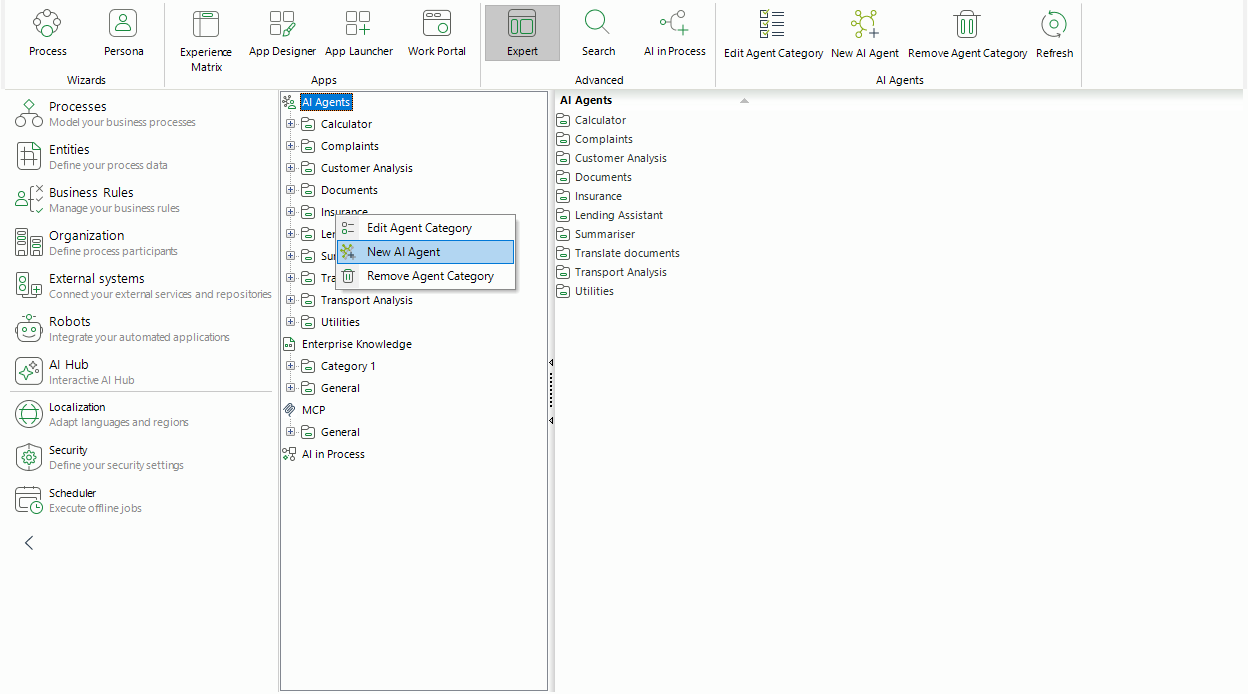
1.Navigate to Bizagi Studio's Expert view. From there, access the AI Hub option to view the node structure of AI Agents.
2.Right-click the Category node and select New AI Agent. Alternatively, use the corresponding button in the top ribbon.
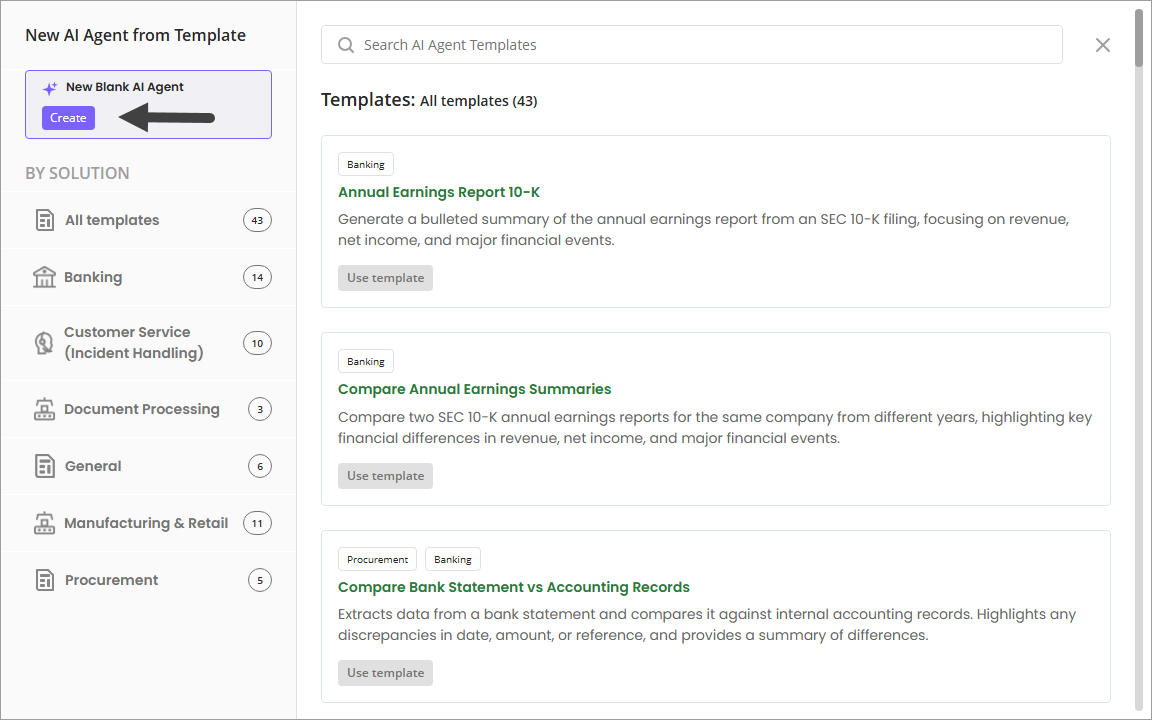
This opens the New AI Agent from Template window. In the left sidebar, click the Create button under the New Blank AI Agent label.
The New AI Agent window opens for you to configure your AI Agent.
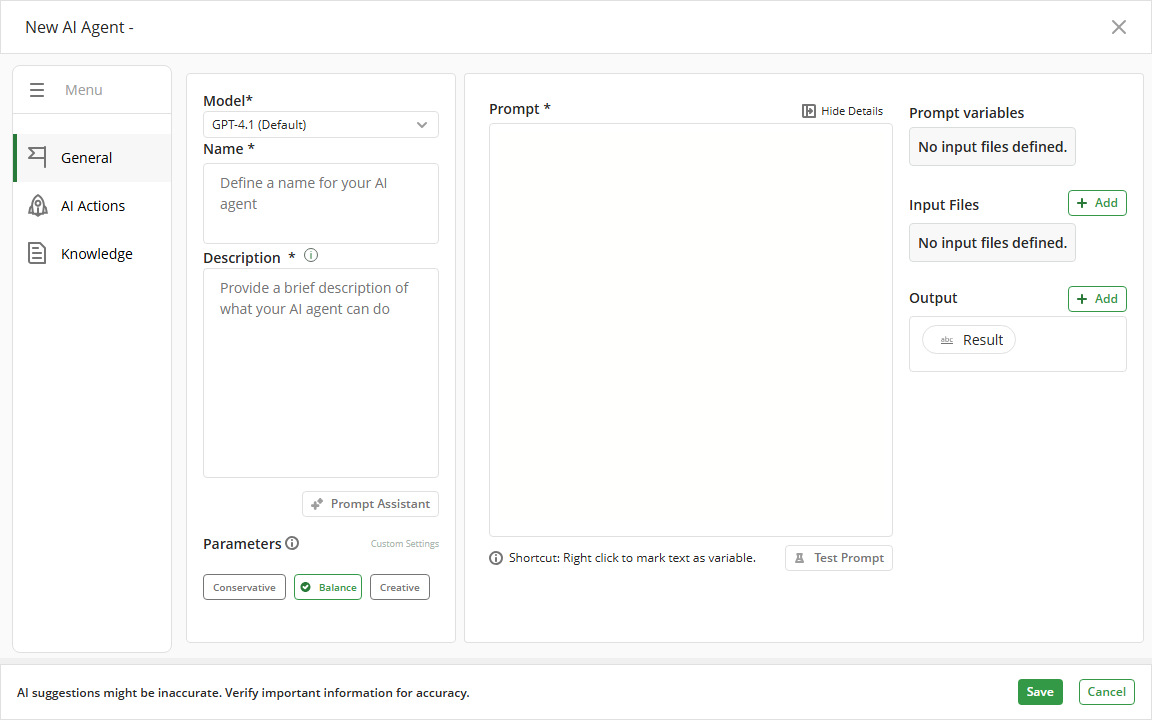
3.For each AI Agent, you need to provide the following details:
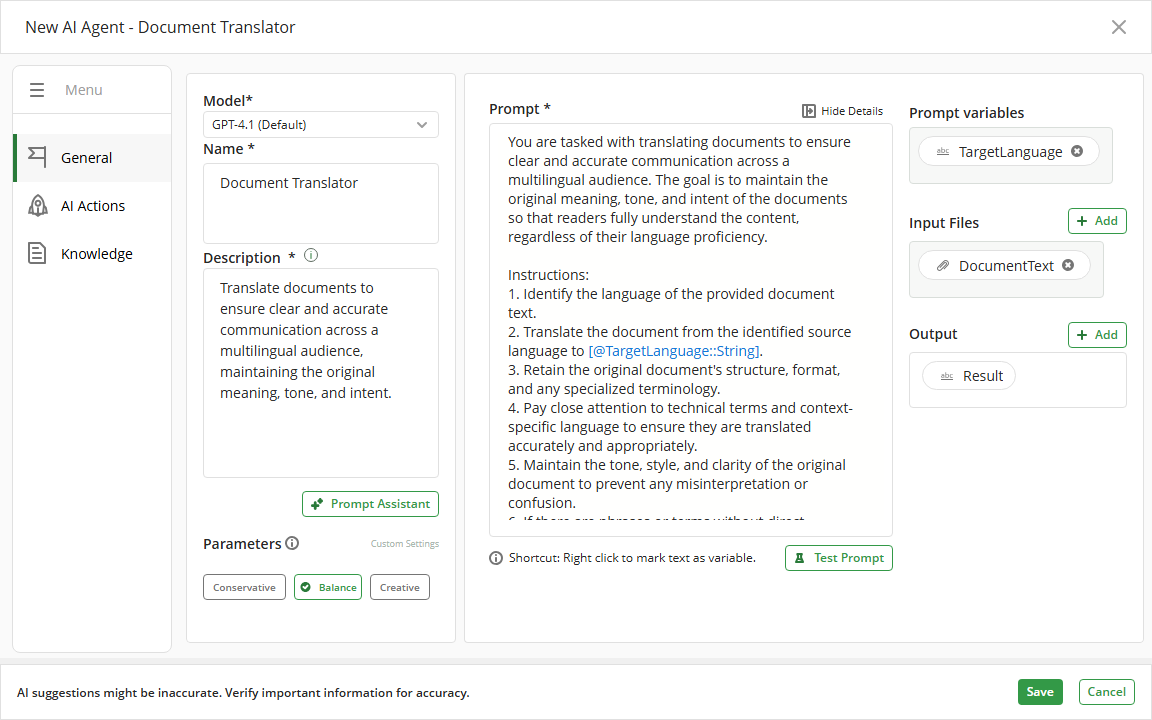
•Model: Select the model version to power your AI Agent. The available options depend on the models currently offered by OpenAI and may change over time according to their updates and deprecations. When configuring an agent, you can choose between direct response or non-reasoning models and models with advanced reasoning capabilities, depending on the type of task the agent must perform.
Non-reasoning models are optimized to generate answers quickly and efficiently, making them suitable for tasks that do not require evaluating multiple variables or solving complex problems step by step. In contrast, reasoning models can allocate additional processing to analyze the request internally before producing a response, making them more appropriate for scenarios where the agent must interpret complex contexts, relate multiple conditions, or evaluate different alternatives before reaching a conclusion.
|
•To use files as inputs in your AI Agent, you must select GPT-4o or a newer model. •Models do not have real‑time awareness and generate responses based on the information available up to their last training update. As a result, they may return outdated values when prompts rely on current or time‑dependent information. |

•Name: Choose a name for the AI Agent, which will be displayed under the selected Category node.
•Description: Briefly summarize the purpose or capabilities of your AI Agent.
•Parameters: For non-reasoning models, you can define how the AI Agent generates responses by choosing a preset (Conservative, Balanced, or Creative) or customize the following model parameters:
oTemperature: Controls randomness. Lower values make responses focused; higher values increase creativity.
oTop-p: Limits word selection to the most probable subset. Lower values keep output precise; higher values add diversity.
oFrequency Penalty: Reduces repeated words or phrases.
oPresence Penalty: Encourages introducing new ideas instead of repeating concepts.
|
New AI Agents use the Balanced preset by default for non-reasoning models. |
•Reasoning Level: For reasoning models, you can select a level, which corresponds to the reasoning capacity, measured by processing time and the volume of context processing required to generate a response. The available levels are the following:
oNone: Disables additional internal reasoning, generating responses using minimal processing focused on direct output.
oLow: Prioritizes a faster response, using a reduced level of internal processing.
oMedium: Provides a balance between a quality response, processing time, and resource consumption.
oHigh: Allows the model to allocate more internal processing to analyze the problem before responding.
|
New AI Agents use the None level by default for reasoning models. |
•Prompt: This is a crucial setup where you define the instructions for your AI Agent. A Prompt is a natural language instruction given to an AI Agent to perform a specific task. When building a Prompt, your creativity plays a major role. AI Agents are powerful tools, but the effectiveness of their responses relies heavily on your subject matter expertise and how you craft your Prompts.
Here are some tips for creating an effective Prompt for your AI Agent:
oBe specific: Clearly state your request. The AI Agent cannot infer or interpret your meaning beyond what is provided in the Prompt, so longer and more detailed Prompts generally result in greater clarity. The more precise you are, the better the model can understand and provide a relevant response. For example, instead of saying "Summarize this document," you could say, "Summarize this document in three bullet points highlighting the key findings."
oDefine roles: Specify who the AI Agent is acting as. This helps set the tone and style of the response. For example, you might instruct the AI Agent to act as a Customer Service Representative, a Technical Support Specialist, or a Marketing Expert. This ensures the response aligns with the expected role and expertise.
oSet the scene: Describe the situation the AI Agent is in. Providing situational context helps the AI Agent tailor its responses to the specific circumstances. For example, "You are assisting a customer who is frustrated with a delayed order," or "You are explaining a complex technical issue to a non-technical audience."
oProvide background: Context is of utmost importance. AI Agents are context-aware, meaning they can understand and utilize background information to generate more accurate and relevant responses. Providing detailed context helps the AI Agent grasp the nuances of the topic, the specific environment, or the circumstances surrounding the task. This can include historical data, current situations, or specific details relevant to the task at hand. The richer the context, the better the AI Agent can tailor its response to meet your needs. For instance, "Given the recent changes in company policy regarding remote work..."
oSpecify format: Tailor the AI Agent's response to use a specific format. This can include technical language, specific words, characters, numbers, or responding in a particular language. For example, you might request, "Provide the response in technical jargon suitable for engineers," or "Translate this summary into Spanish," or "Respond with a list of key points using bullet points."
oDefine the task: Clearly state the task you are asking the AI Agent to complete. Whether you need the AI Agent to summarize, categorize, prioritize, translate, or perform another specific task, clarity is key. For example, "Categorize the following customer feedback into positive, negative, and neutral comments," or "Prioritize these support tickets based on urgency."
Your Prompt may also contain variables or instructions to guide the response generation effectively. Including additional details, examples, or constraints can further tailor the output to meet your specific needs. For example, "Provide examples where applicable," or "Limit the response to 200 words." The more guidance you provide, the more accurate and useful the AI Agent's responses will be.
•Prompt Assistant: If you are unsure how to construct a Prompt, you can use this button to let Bizagi generate a suitable Prompt based on the AI Agent's name and description. The Prompt Assistant identifies variables and creates them automatically if needed.
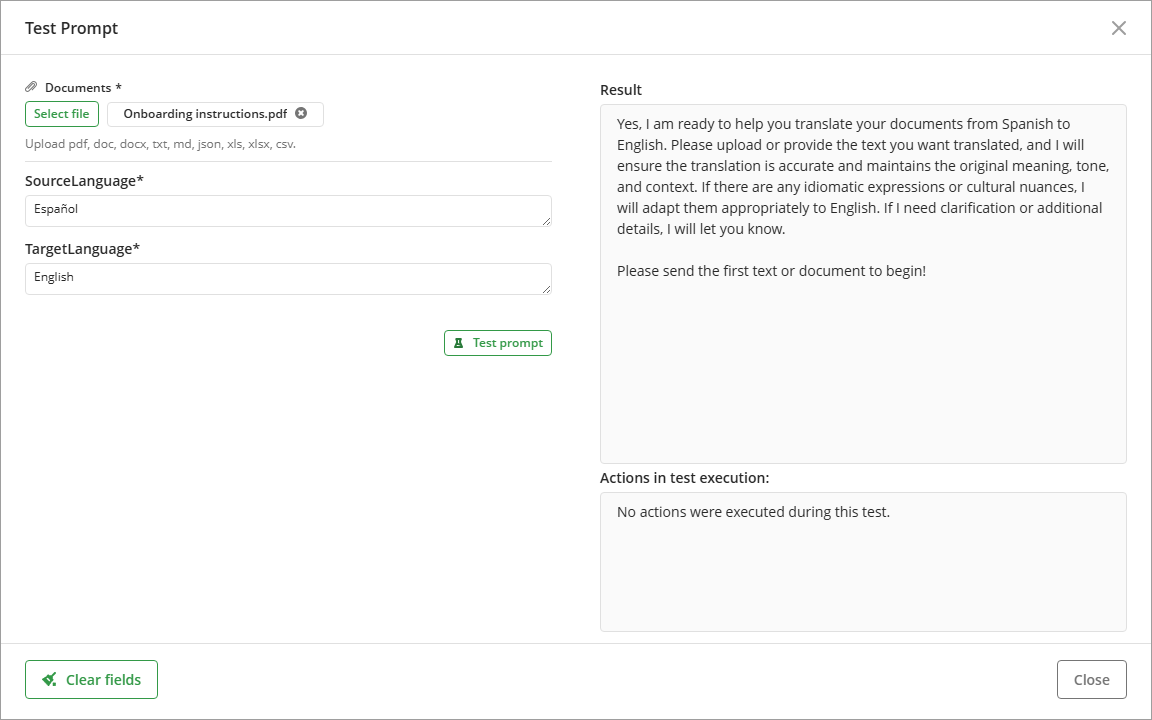
•Test Prompt: After configuring the Prompt, you can validate it by clicking this button. It opens a window where you can input the required information for Variables within the Prompt and test it. You will see the AI Agent's response in the Result box.
When entering values for the Prompt variables, these values are temporarily stored in memory. If you close the test window to adjust the Prompt, actions, MCP, or knowledge base, the system automatically reloads the previously entered values when you reopen it, so you do not need to input them again. If needed, you can manually clear all variable values using the option available at the bottom of the window.
Variable values remain available while you continue editing the AI Agent. These values are automatically cleared when you close the Agent editor.
|
Test Prompt allows testing the behavior of the AI Agent with only one file as input. In live execution, the Agent can process multiple file inputs. This may lead to differences between testing and runtime results. Additionally, variable values entered during testing are automatically preserved in memory while the Agent remains open, enabling faster iterations without re-entering data. |
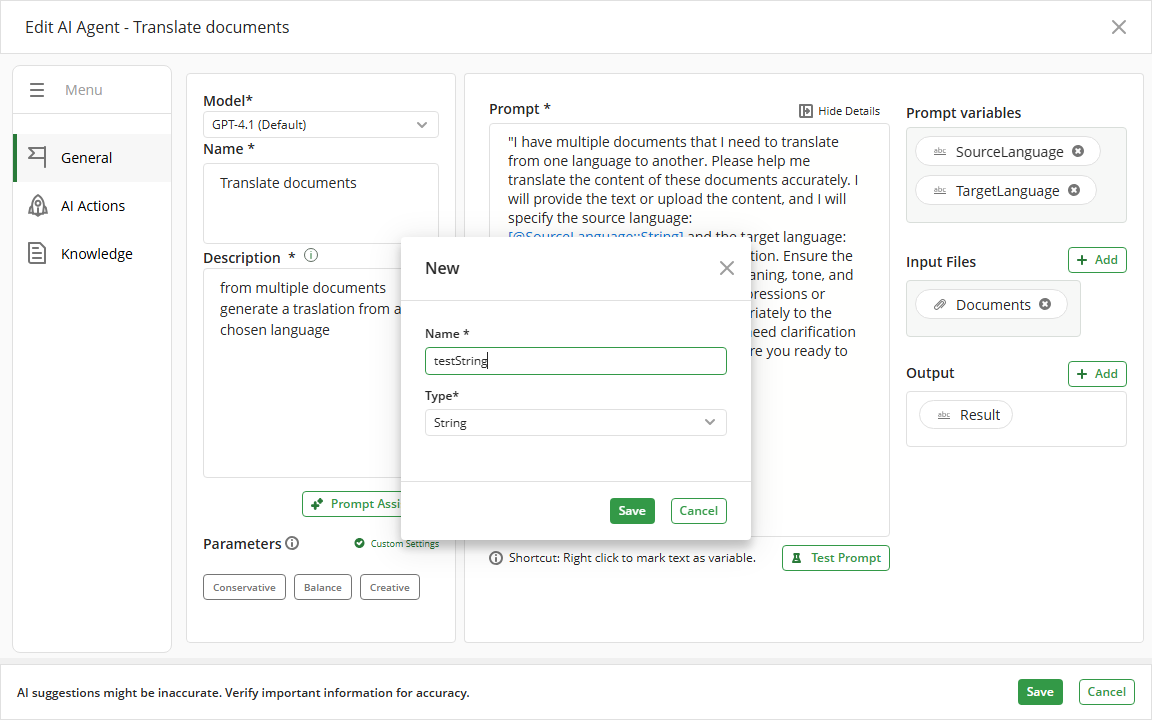
•Prompt variables: This section displays the variables specified in the Prompt along with their names and data types. Variables serve as placeholders that enhance customization and adaptability in response generation.
To add a variable, select the relevant text in the Prompt, then double-click or right-click to define its name and data type. Supported data types include Boolean, Date, Number, and String. Click the Save button to finalize the variable creation process.
•Input files: You can upload files to AI Agents, enabling Bizagi's AI to quickly provide insights and solutions based on the content. For more information, see AI Agents using files as inputs.
•Output: You can define one or more outputs for your AI Agent. These outputs are generated by the AI Agent when it is executed and can be used in your process. Each output must have a name and a data type. Supported data types include String, Number, Date, Boolean, and Object.
Click the + Add button next to the Output label to define each output. Once defined, click Save to list it as part of the AI Agent's configuration.
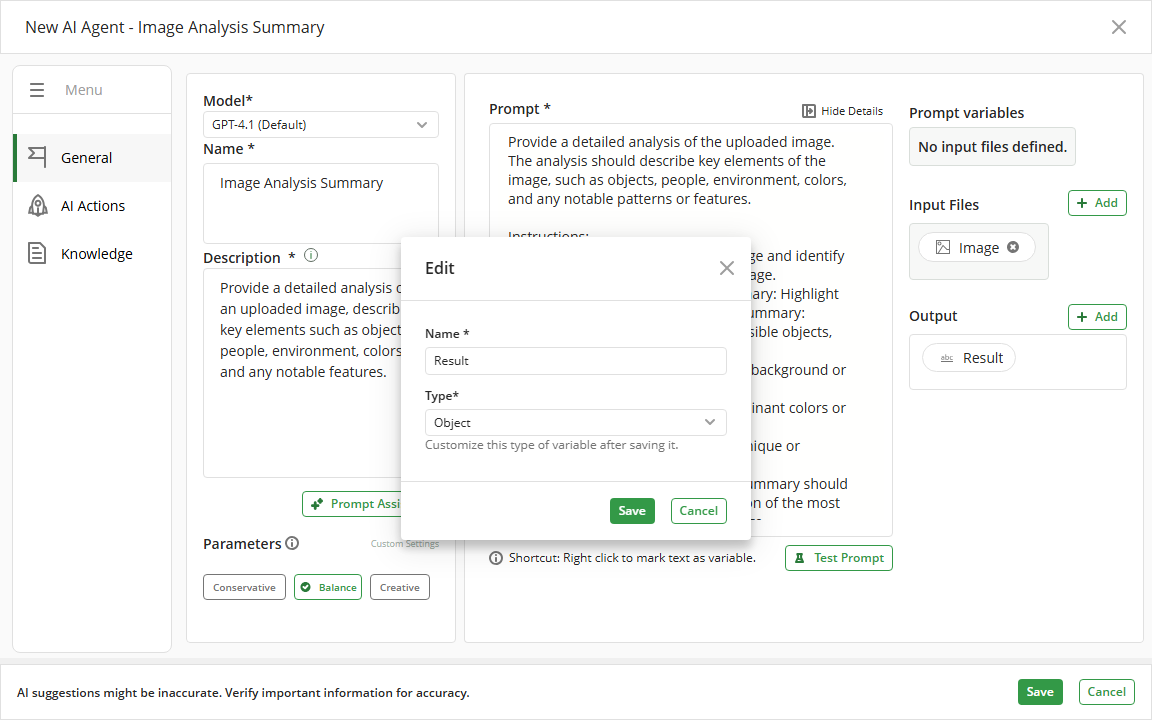
When you execute the AI Agent, it generates a structured JSON response that includes the output data. This response can be previewed using the Test Prompt feature. You can then map these outputs to attributes in your process data model.
|
Keep in mind the message at the bottom of the window: AI suggestions might be inaccurate. Verify important information for accuracy. As you are engaging with artificial intelligence, it is your responsibility to verify that both the information set for your AI Agent and the output generated during Prompt testing remain consistent and suitable. |
4.You can also integrate already configured Connector actions in your project with the AI Agent. For more information, refer to the AI Actions article.
5.After completing the configuration and testing of your AI Agent, click the Save button to finalize the creation process. Your AI Agent is listed under the Category node, ready for both usage and modification.
Last Updated 7/16/2026 5:05:33 PM