Overview
After configuring a pipeline, you can use it in an activity action to execute its actions during the process. You can select an existing pipeline or create one while configuring the activity action. This article explains how to add a pipeline to a task and configure it in an On Exit event.
What you need to do
To configure a pipeline in an activity action, complete the following steps:
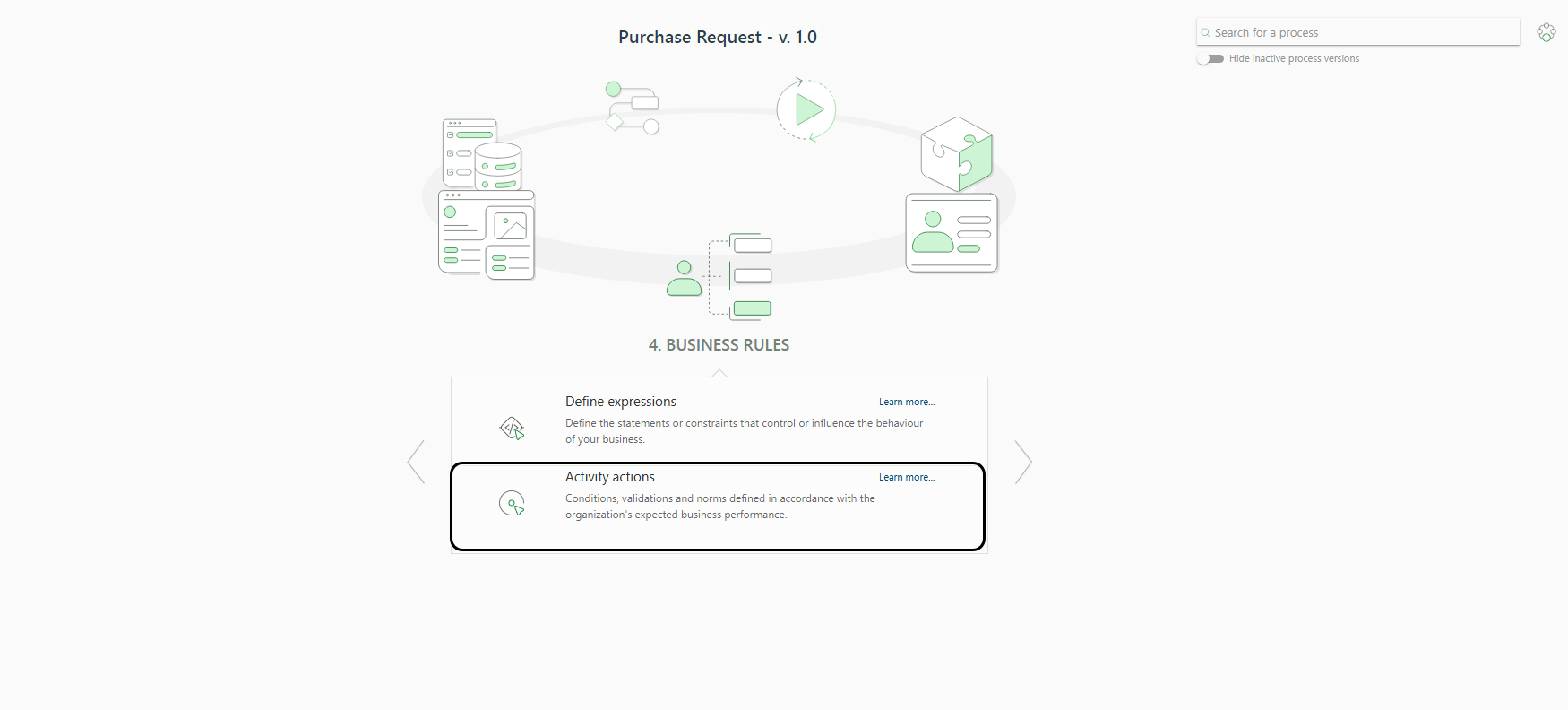
1. Go to the fourth step of the Process Wizard and select Activity Actions.
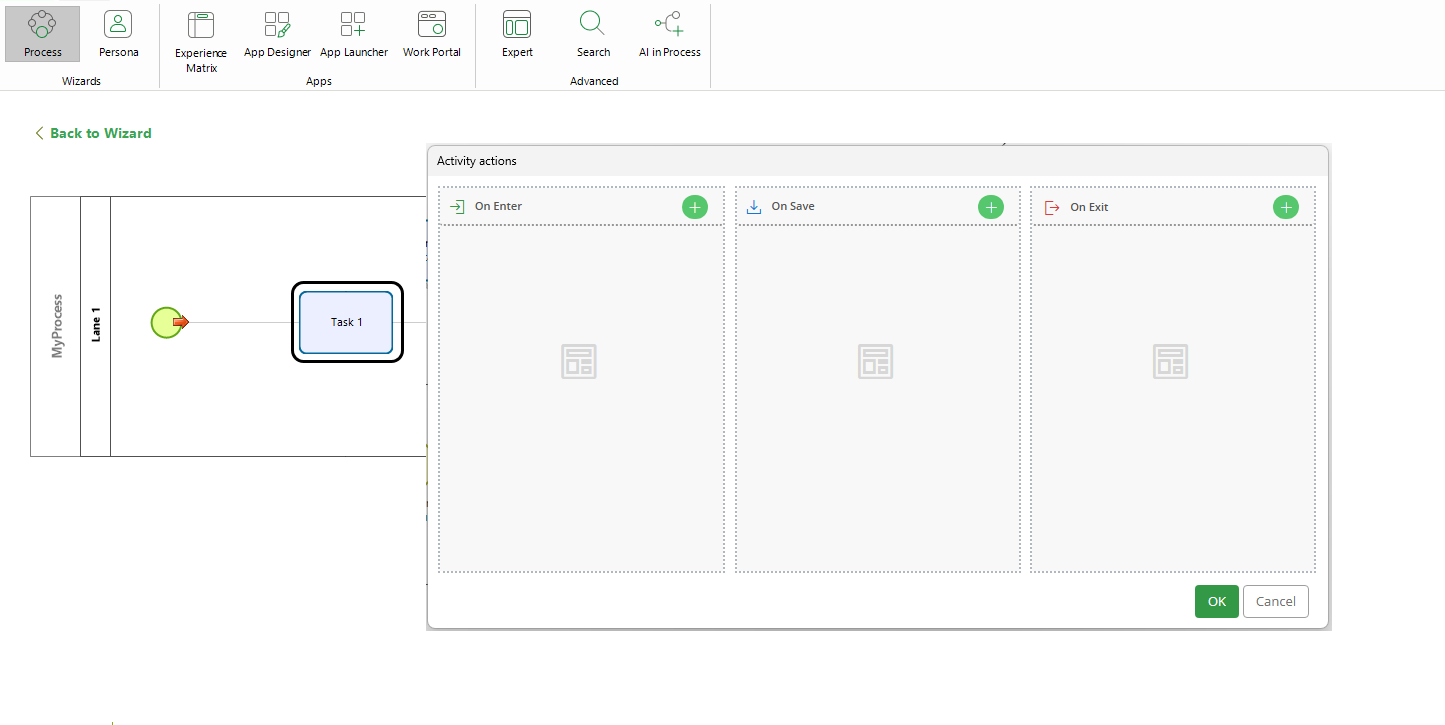
2. Open the task where you want to configure the pipeline.
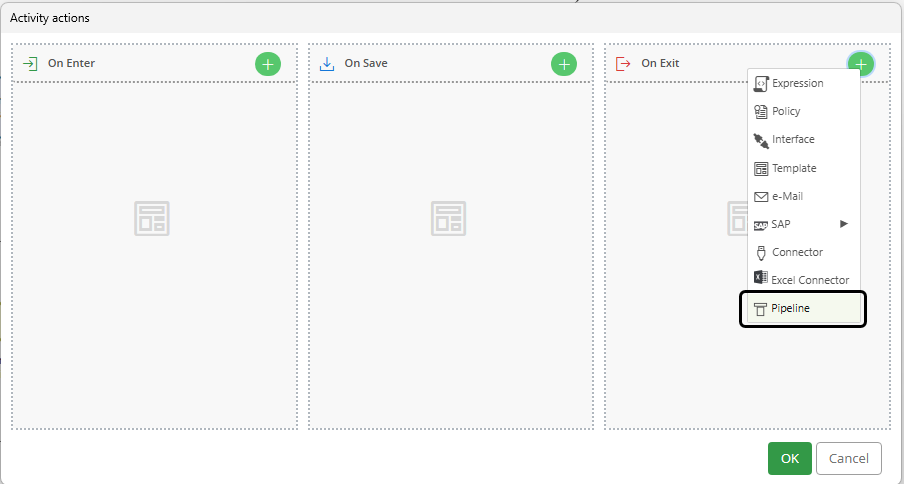
3. Go to the On Exit menu and click Pipeline.
|
You can only configure pipelines in an On Exit event, as they can change external sources of information, send emails, and perform other actions that require waiting for a response from an external system. Because an On Save event does not wait long enough for these responses, you cannot configure pipelines in this event. |

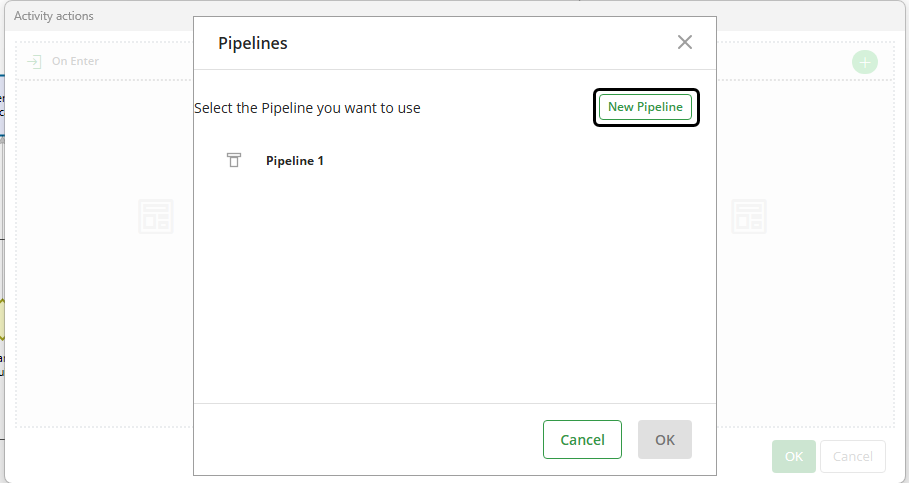
4. If you had previously configured a pipeline, select the one that you want to use from the list and then click OK.
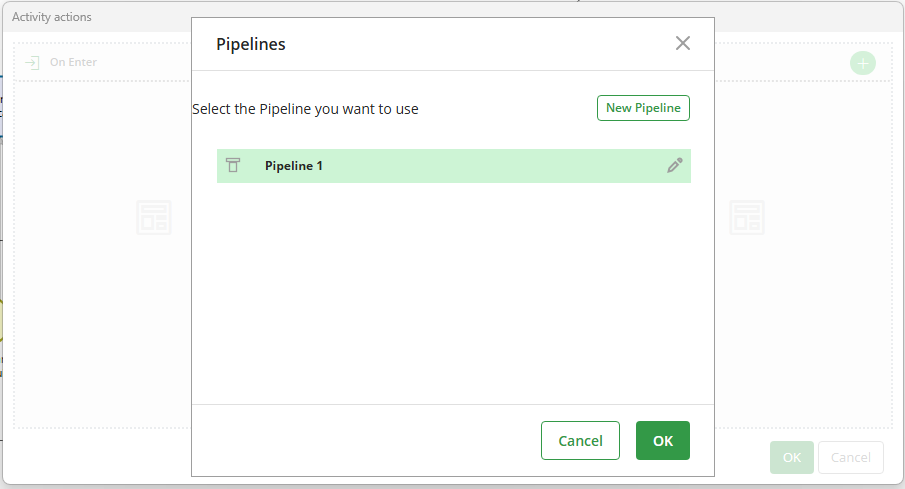
If you have not configured a pipeline, click New pipeline. To create a new pipeline, you can follow the steps described in this section.
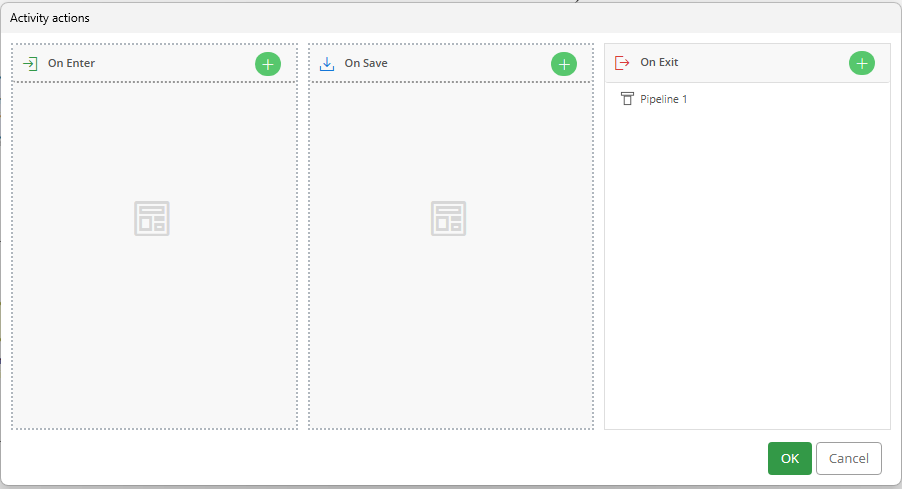
5. After you select or create the pipeline, it appears under the On Exit event.
Last Updated 10/13/2026 11:07:50 AM