|
Considerations •This article is specifically designed for those people who understand CSS and HTML. •We strongly recommend using Google Chrome to facilitate the different taks related to this Feature. •Take into account that in this guide we are going to use Visual Studio Code to create the .css and .js, but you are free to use the tool you prefer. |

If you want to find the specific IDs of the elements you want to customize, refer to the Finding IDs in the Inspector article.
JavaScript customizations for apps
You can use the JavaScript file upload to extend or override the default client-side behavior of Bizagi controls. This file allows you to add custom logic, validate data, react to user interactions, manipulate controls dynamically, or integrate external functionality within the formas of your app. Through JavaScript, you can enhance how controls behave beyond Bizagi’s standard features.
When you modify the global script file for apps customizations, you are applying logic that can impact the entire apps interface. Global scripts run on every screen unless you use conditional logic or target specific controls or events. Because of this, changes in this file can affect all forms, actions, and UI components unless additional checks prevent them from doing so.
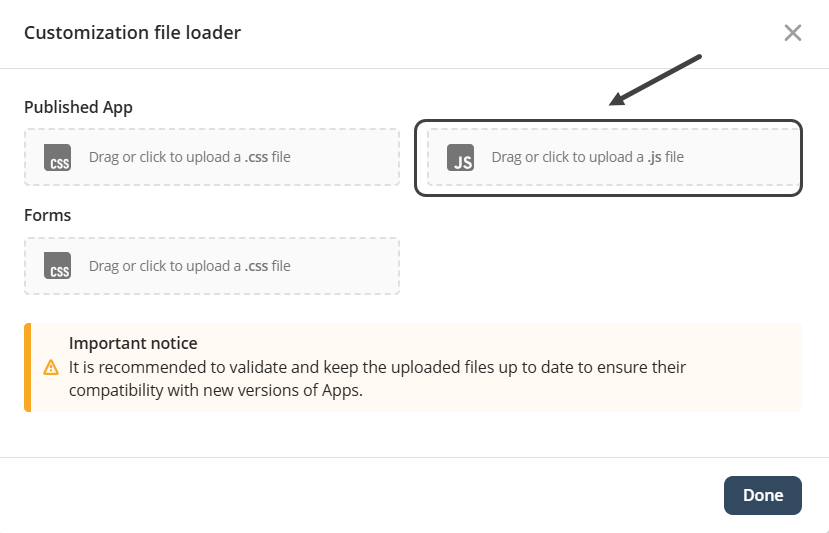
These are examples of elements and behaviors you can manipulate with JavaScript in your app:
•Body events
•Text fields
•Number fields
•Date pickers
•Combo boxes
•Buttons
•Links
Body events
Global page events
Events that run as soon as the form loads or when the user interacts with the document. They apply to the entire page.
Example
This runs code every time the form finishes loading.
$(document).ready(function () {
console.log("The form is fully loaded.");
});
Text fields
Handle input changes
Adds behavior when the user types inside any text field.
Example
This listens for changes in a specific text field named Description.
$("#Description").on("input", function () {
console.log("User is typing:", $(this).val());
});
Number fields
Validate numeric input
Adds logic to restrict values or format the number.
Example
Prevent entering negative numbers in a field called Amount.
$("#Amount").on("change", function () {
const value = parseFloat($(this).val());
if (value < 0) {
$(this).val("");
alert("Negative numbers are not allowed.");
}
});
Date pickers
React to date selection
Runs code whenever the user picks a date.
Example
When the user picks a date in StartDate, show it in the console.
$("#StartDate").on("change", function () {
console.log("Selected date:", $(this).val());
});
Combo boxes
Detect when the user selects an item
Useful for dynamic filtering or conditional logic.
Example
Triggers an action when the user changes the value of Category.
$("#Category").on("change", function () {
const selected = $(this).val();
console.log("Selected option:", selected);
});
Buttons
Custom click behavior
Allows adding your own actions on top of Bizagi’s native behavior.
Example
Show a message when the button SaveButton is clicked.
$("#SaveButton").on("click", function () {
alert("Button was clicked.");
});
Links
Intercept or override link clicks
Useful when you want to perform logic before navigating.
Example
Prevent a link from navigating and run custom logic instead.
$("#HelpLink").on("click", function (e) {
e.preventDefault();
alert("Opening help section...");
});
|
Remember that for certain elements it is necessary to use the specific IDs of the elements you want to customize. Refer to the article Finding IDs in the Inspector if you have any questions. |
|
Note that you do not need to republish an app to see the changes made using this feature. Once a file is uploaded the app will show the desired customizations automatically. |
Last Updated 12/10/2025 12:48:43 PM